Creating and Using FMEA Subtables
You can add Subtables to your Functions in Relyence DFMEA, FMEA-MSR and FMECA and to your Process Steps in Relyence PFMEA. Subtables enable you to capture additional details for each Function or Process Step.
Creating Function or Process Step Subtables
To add a Subtable, you must first define the Subtable.
Note: This documentation shows the process while working in Relyence PFMEA, the same approach applies for Relyence DFMEA, Relyence FMEA-MSR and Relyence FMECA.
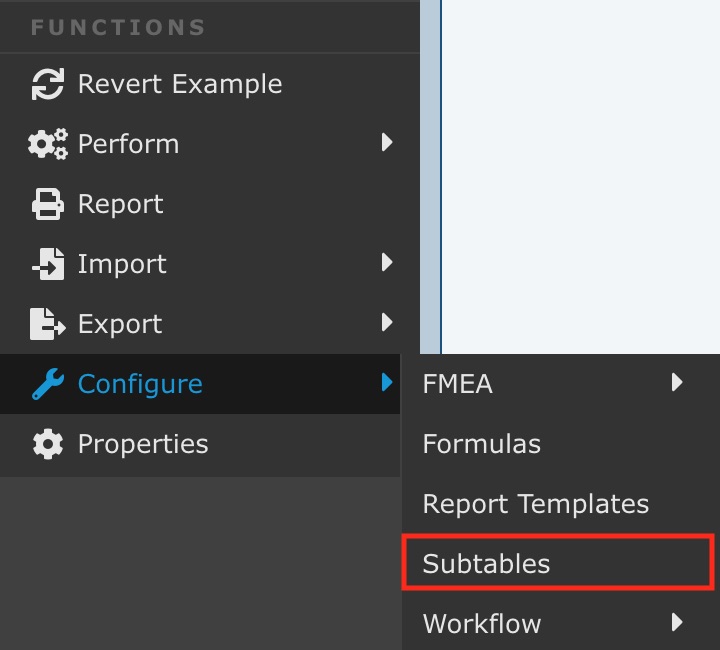
With your Analysis open, and Process FMEA selected in the Sidebar, from the Sidebar menu, click Configure>Subtables.
The Configure Subtables dialog appears.
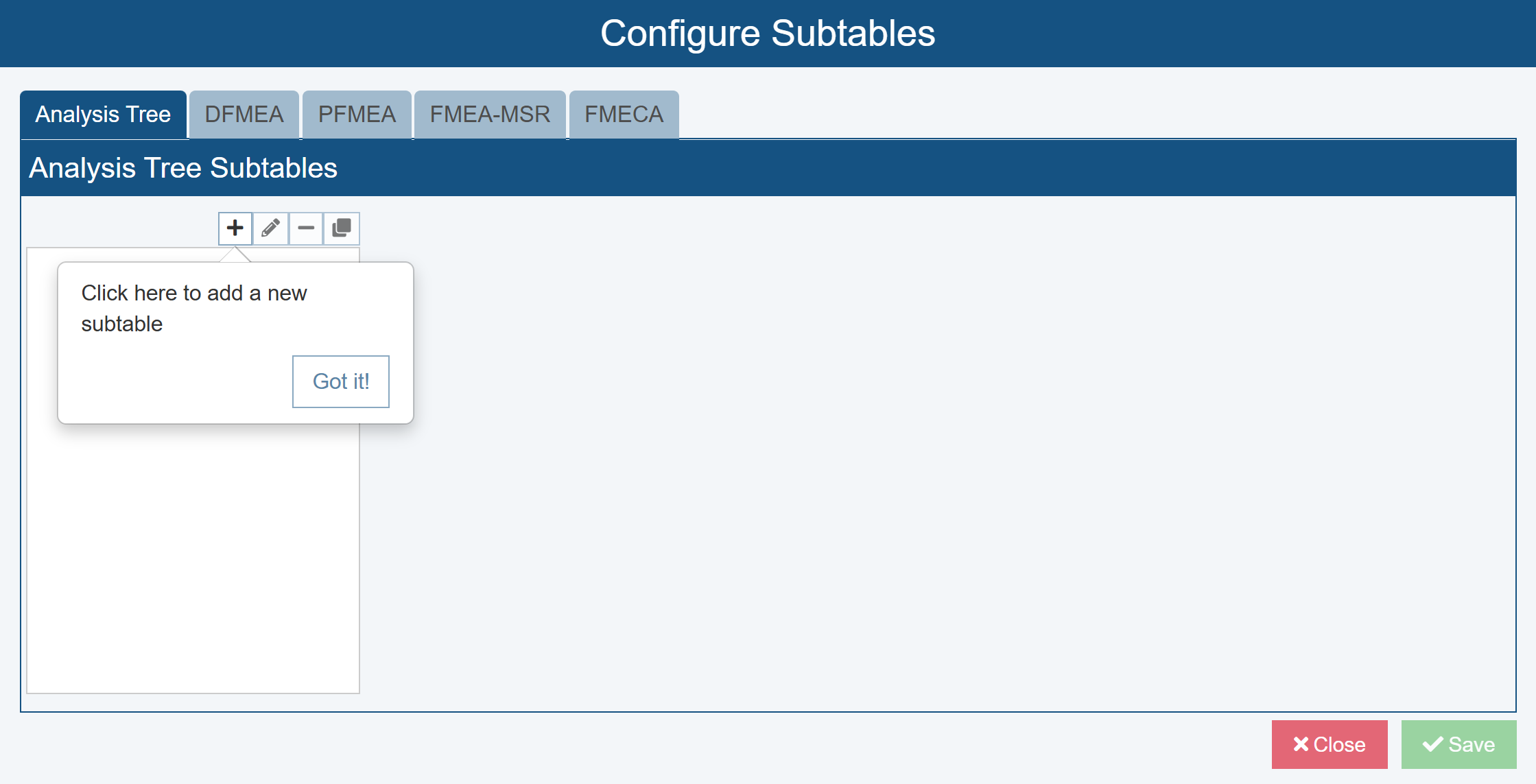
Click the DFMEA, PFMEA, FMEA-MSR or FMECA tab.
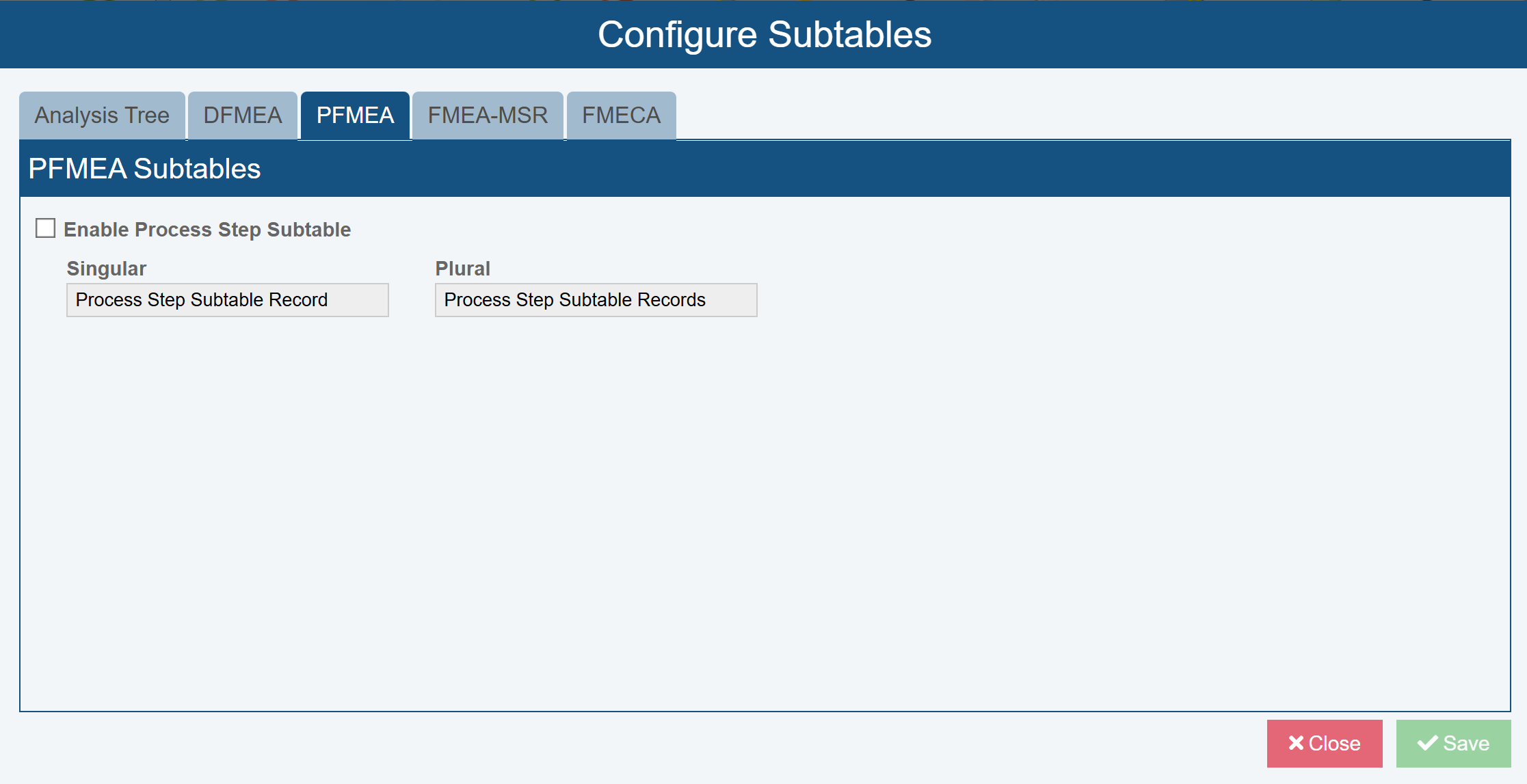
To create the FMEA Subtable, click the Enable... checkbox, such as Enable Process Step Subtable.
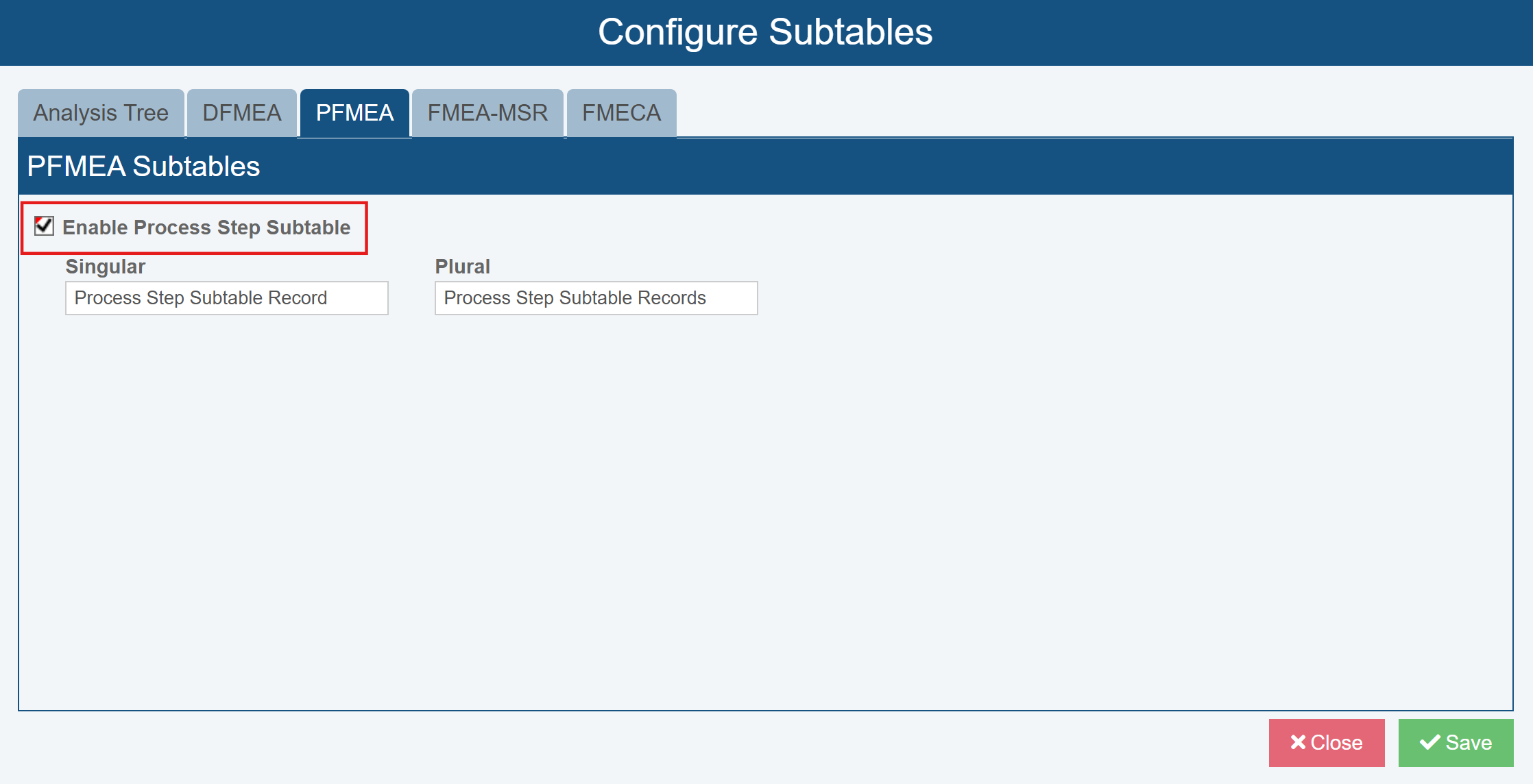
If needed, assign the Singular and Plural text for the Process Step Subtable, which will be used in menus and messages about the subtable.
Click Save and then Close.
Adding Function or Process Step Subtable Fields to the FMEA Worksheets
To add Function or Process Step Subtable fields to a worksheet, you must edit the View.
General instructions for editing the View can be found here: Customizing the FMEA Worksheets.
To add a Text field called Description and a Number field called Quantity, you would complete these steps:
- From the PFMEA Worksheet, use the View selector (Process FMEA) in the top-right corner and click Customize view and then Change this View.
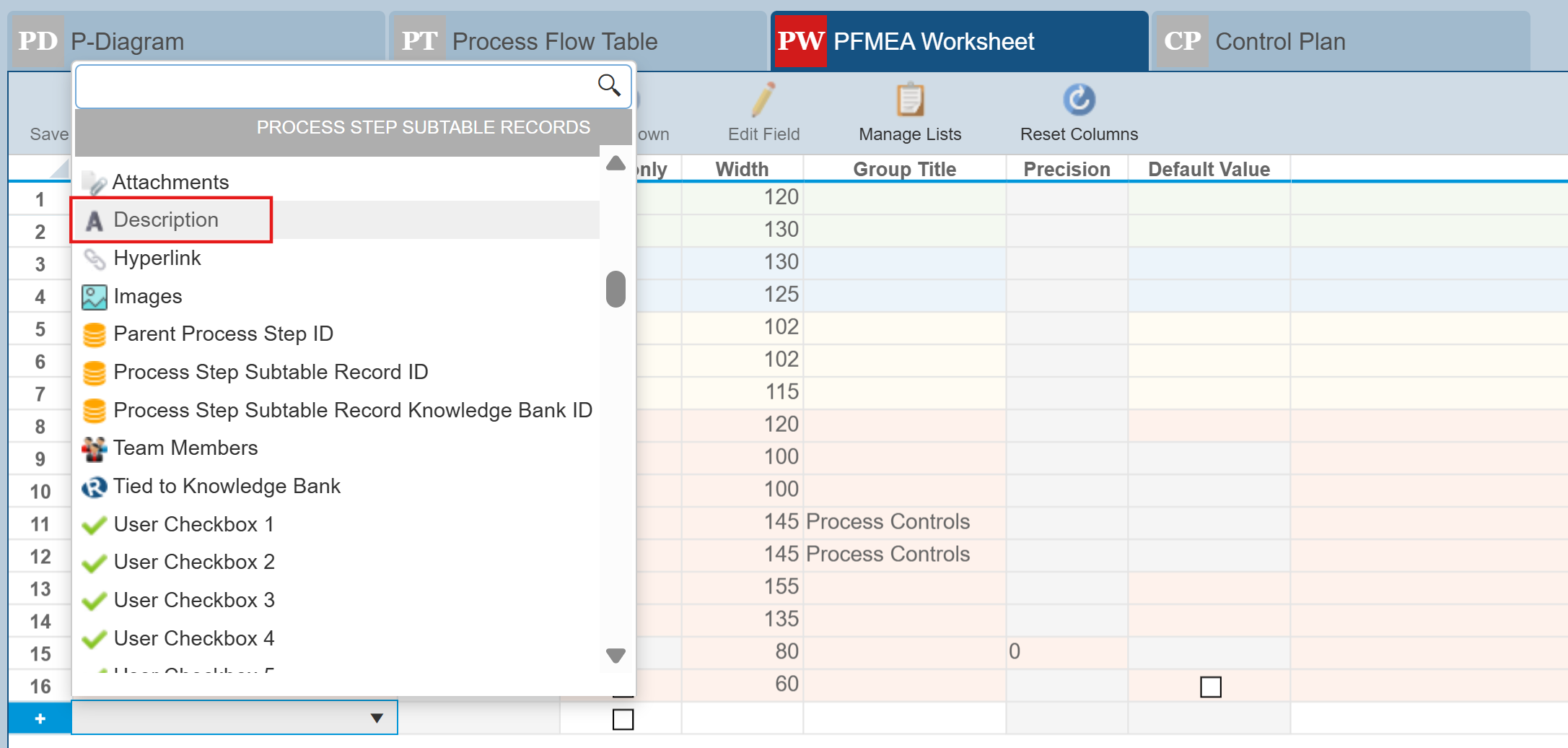
- In the blank row at the bottom of the table, click in the Field column and under PROCESS STEP SUBTABLE RECORDS, select Description.
3. Repeat to add a User Number field to show Quantity. In the example below, the User Value 1 field was used and via the Edit Field button, it was renamed to Quantity and the Precision was set to 0.
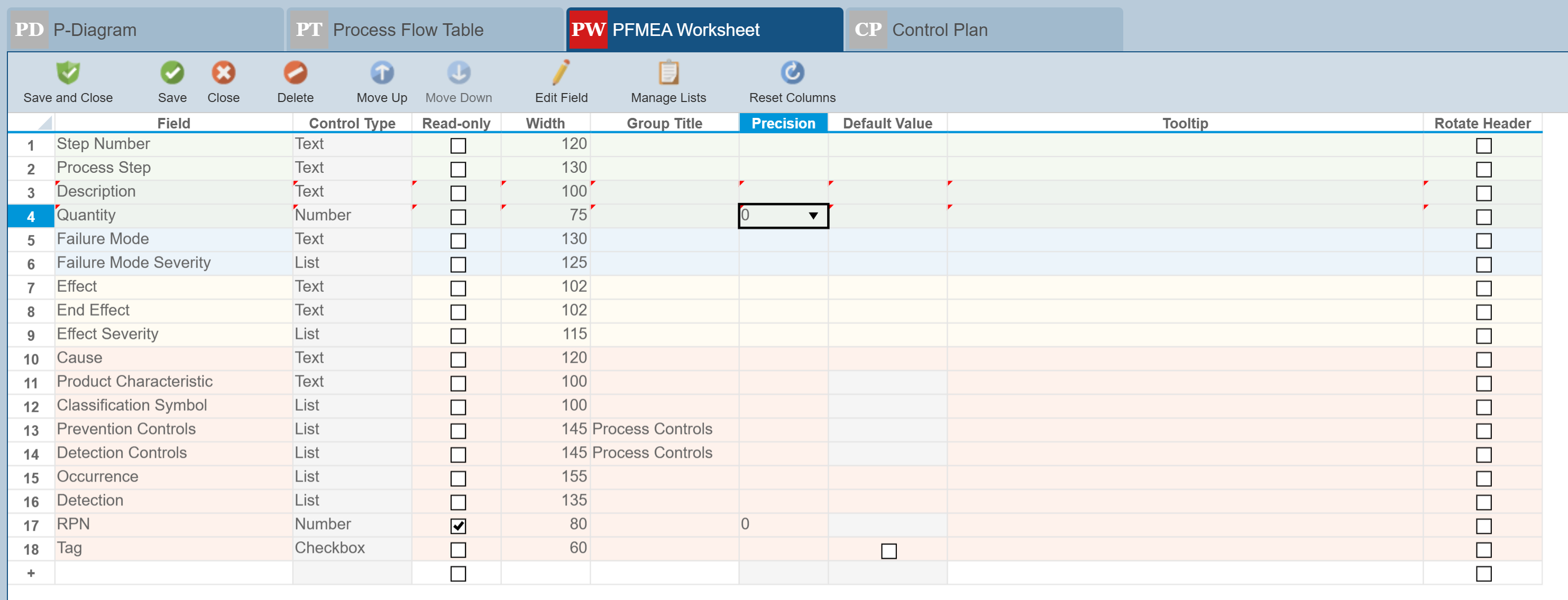
4. Click Save and Close to see the updated PFMEA Worksheet.
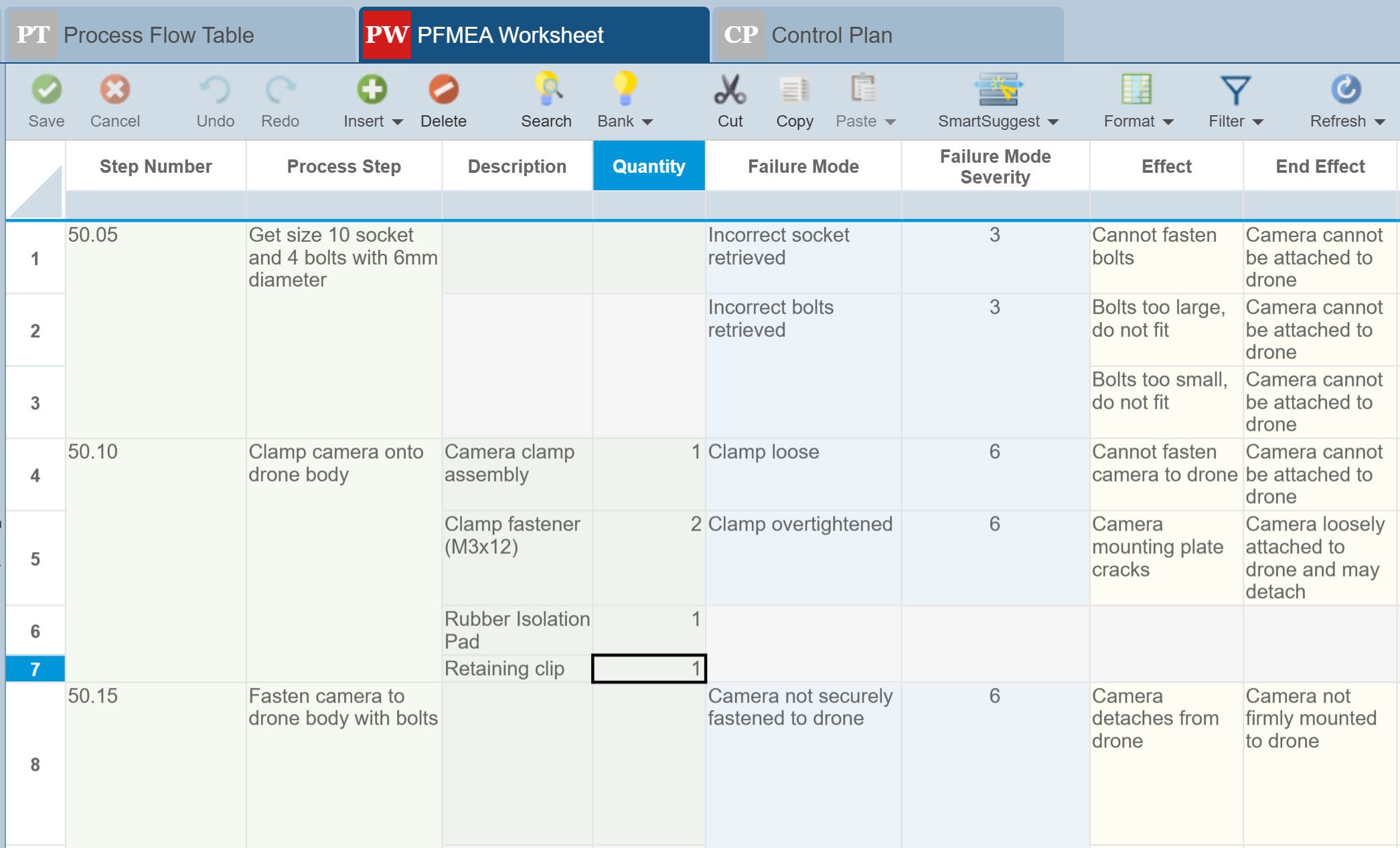
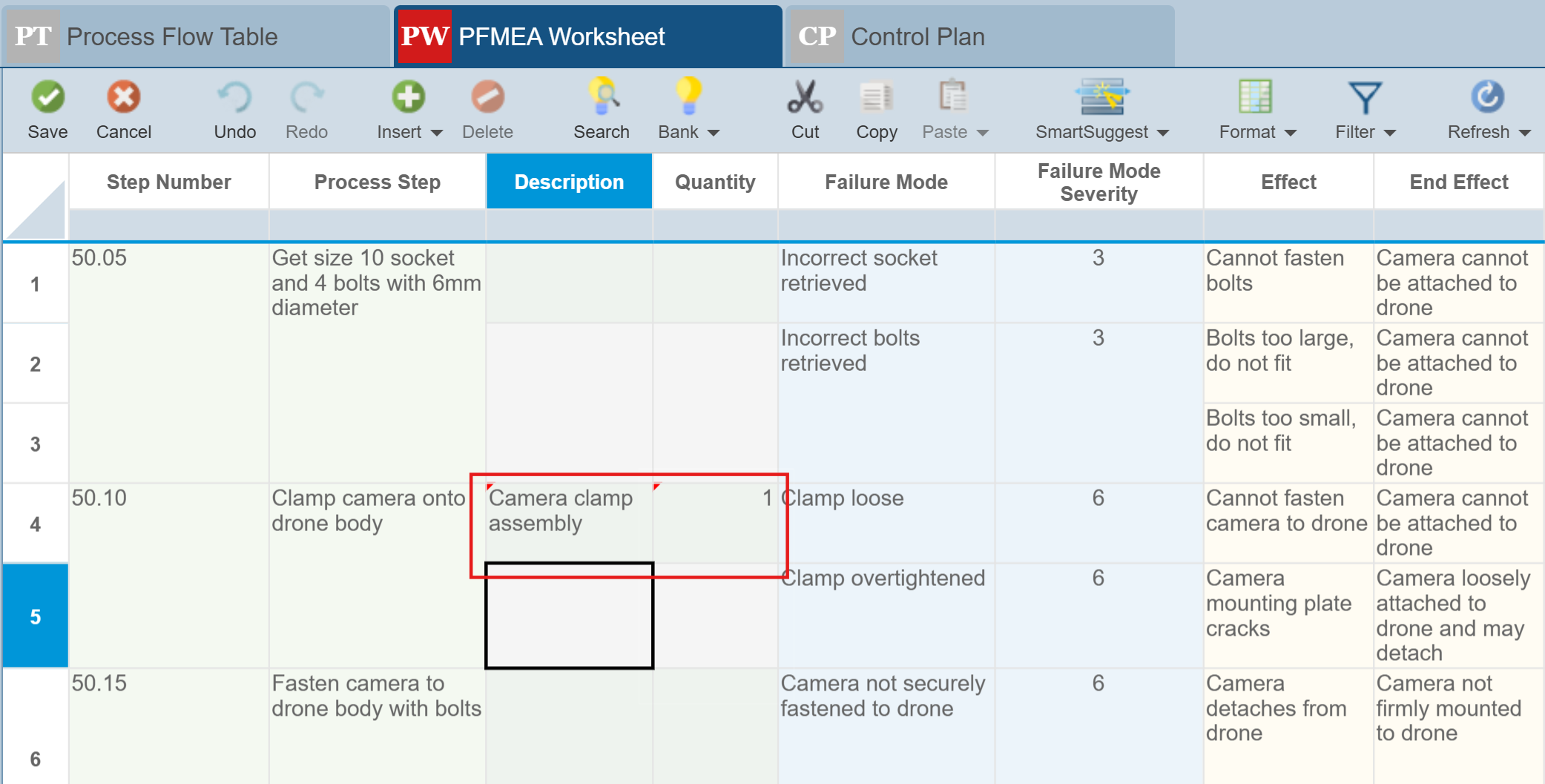
The updated PFMEA Worksheet view, including two PFMEA Process Step Subtable fields will appear like this:
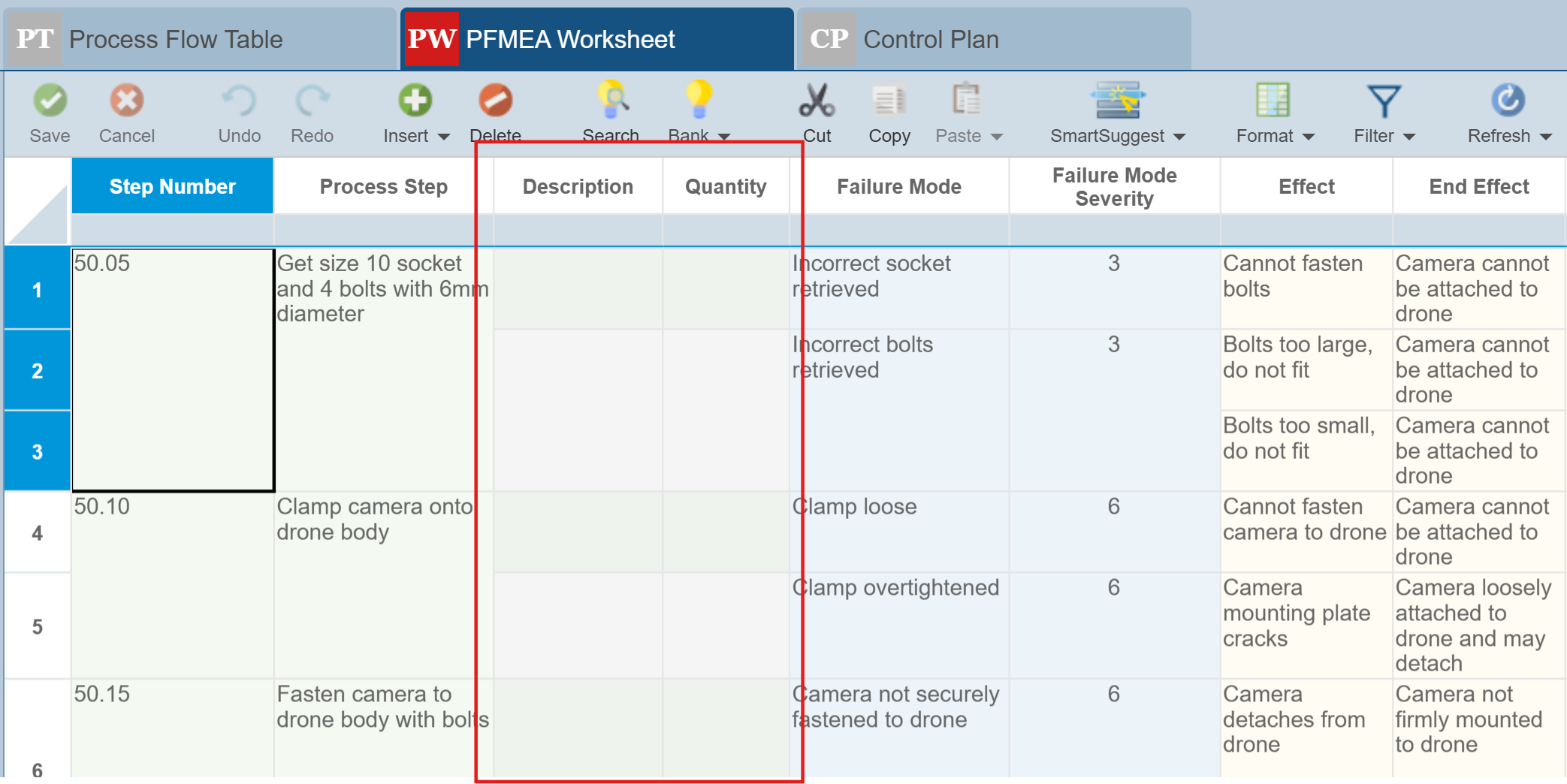
Add data to the Subtable fields just like any other field.
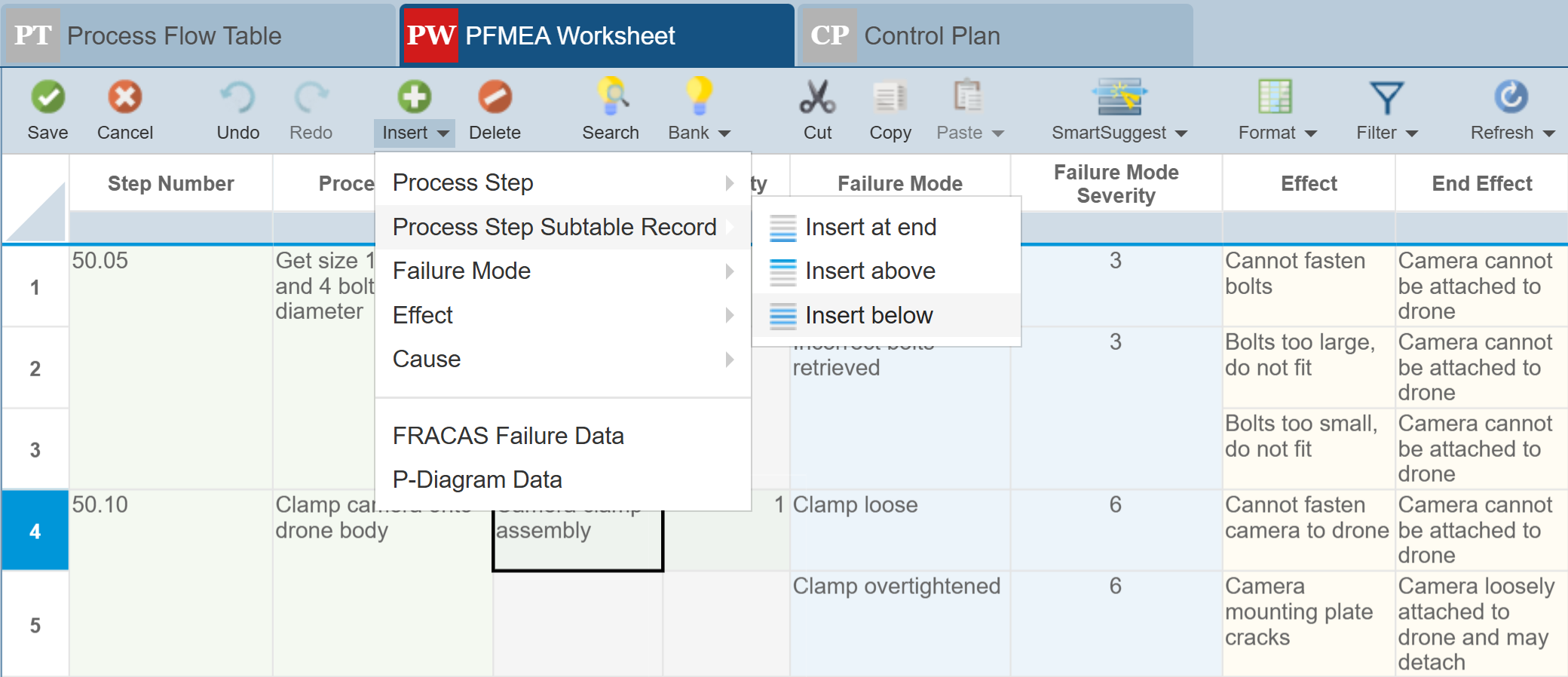
To add additional subtable records to an existing Function or Process Step, use the Insert menu options.
A sample Process Step with 4 Process Subtable records appears like this, with Process Steps in the lighter green shade and Process Subtable details in the darker green shade: