Managing Preliminary Maintenance Actions for SAE 1025 FMEA
You can define the preliminary Maintenance Actions you use in your SAE 1025 FMEAs. Preliminary Maintenance Actions are corrective or preventive maintenance actions that are made during design work to communicate to the Supportability FMEA team; they are defined for any Cause since their goal is to reduce the likelihood of occurrence. You can manage your Maintenance Actions, modify them, or add or delete them. Maintenance Actions can be stored within your individual Analysis; they can also be added to and stored within any Knowledge Bank for possible use in more than one Analysis.
When a FMEA is active in your Analysis, from the Sidebar menu, click Configure, then click FMEA, and then click Maintenance Actions.
The Maintenance Actions dialog appears.
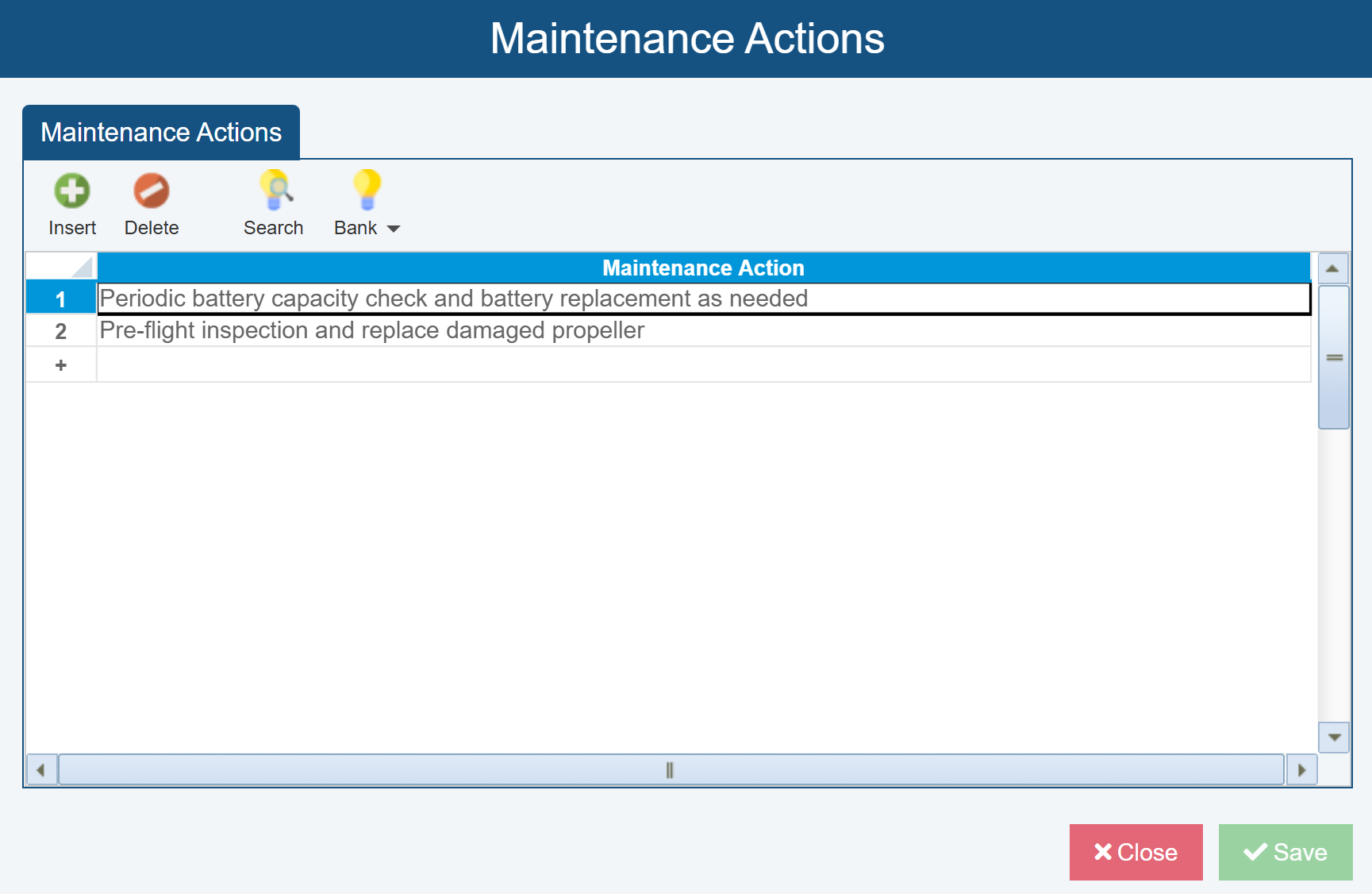
Click Insert or Delete to add or delete Maintenance Actions.
Click Search to find Maintenance Actions stored in a Knowledge Bank that you may want to add to this Analysis.
Click Bank>Add to Knowledge Bank to add the selected Maintenance Action to a Knowledge Bank.
Click Bank>Untie Knowledge Bank to untie the selected Maintenance Action from a Knowledge Bank.
Click Bank>Show Knowledge Bank Fields to show important fields for the selected Maintenance Action related to its inclusion in the Knowledge Bank or Bank>Hide Knowledge Bank Fields to hide the Knowledge Bank-related fields.
For more details about Knowledge Banks, see Using FMEA Knowledge Banks.
Once you have completed work on the Maintenance Actions dialog, click Save, if needed, and then Close.
Note that defined Maintenance Actions can be used for any applicable FMEA type; thus, the same list of Maintenance Actions for DFMEA will also be available for other FMEA types, including PFMEA and SupFMEA.
Adding Maintenance Actions on the FMEA Worksheets
On the FMEA Worksheets, if the Preliminary Maintenance Actions field is shown for Cause records, you can add Preliminary Maintenance Actions by clicking the selector button to the right of the field to display the Maintenance Actions dialog.
On the Maintenance Actions dialog, if needed, use the Find function at the top of the dialog to search for specific maintenance actions. The click the checkbox for any Maintenance Action to be added.
If needed, you can click Add to add new Maintenance Actions via the New Maintenance Action dialog where you can add Maintenance Action details.
Note: You can also remove a Maintenance Action from a record by clearing the checkbox.
When finished adding or removing Maintenance Actions, click OK.