Managing your Own Reliability Prediction Parts Libraries
You have the ability to create your own Prediction Parts Libraries. Your Parts Libraries may be used in addition to the Relyence Parts Library, or in place of it.
Creating a Parts Library of your own may be helpful if you have completed a Reliability Prediction analysis and would like to reuse the Parts from that Analysis in subsequent Analyses. This can greatly speed up the data entry process.
You can continually build up your own Parts Libraries by adding in Parts over time.
There are several methods by which you can add Parts to any Parts Library.
First, you can directly input the Parts through an interface similar to that used in the Parts Table and Parts Form of Relyence Reliability Prediction in an Analysis.
- When you have a single Parts Library, to directly enter parts in to your Parts Library, click Libraries in the Sidebar, then Parts, and then View Library. This opens the Parts Library to review, add, edit, or delete Parts in your Library.
- When you have more than one Parts Library, to directly enter parts in to a Parts Library, click Libraries in the Sidebar, then Parts, and then click the name of the Parts Library you want to edit. This opens the Parts Library to review, add, edit, or delete Parts in your Library.
Secondly, you can use the Build Library function to automatically add Parts from your active Analysis to a new Parts Library. To create and add parts to a Parts Library from an Analysis, click Libraries from the Sidebar, then Parts, and then Build Library. The Build Library dialog appears.
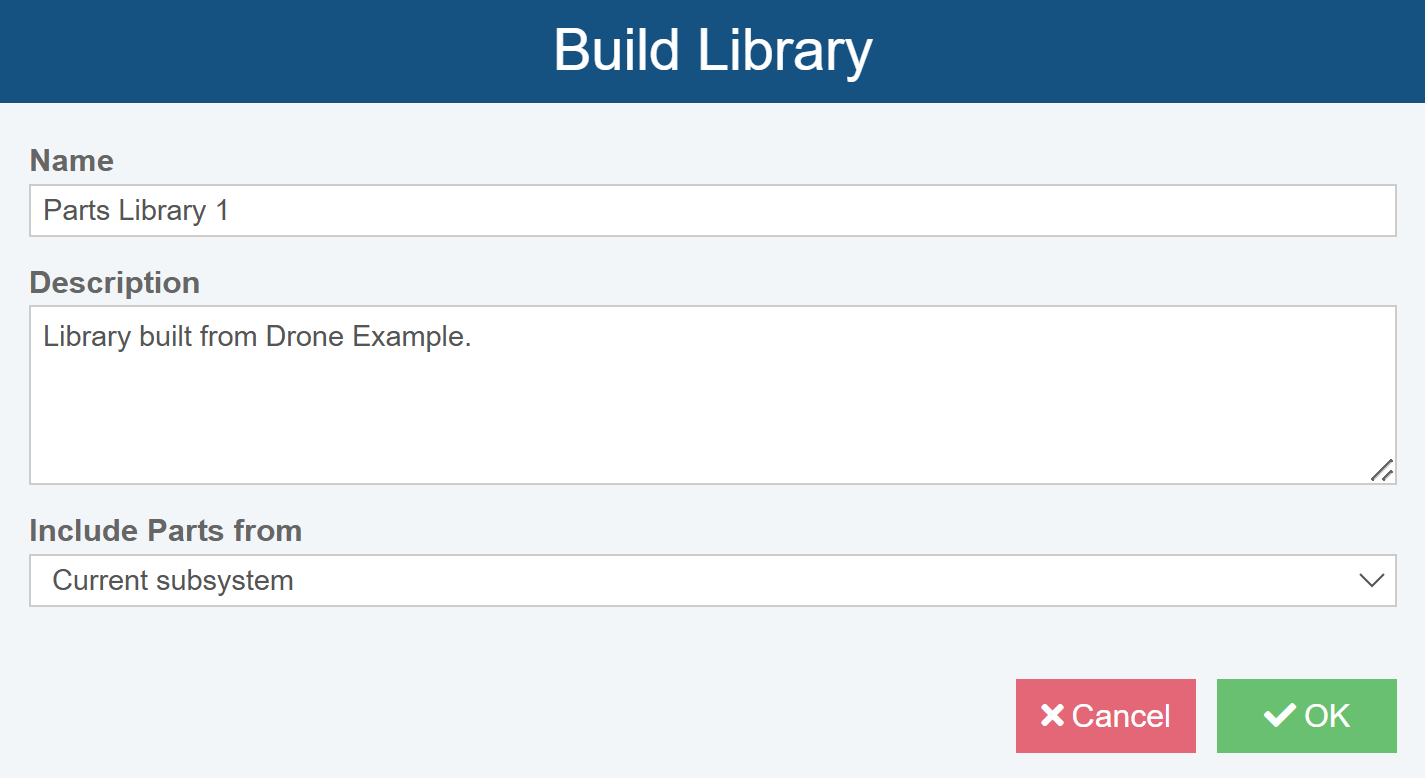
Enter the Name of the new Parts Library to be created, add an optional Description, denote Include Parts from, then click OK.
Thirdly, you can use the Add to Library function to add Parts and part data to a Parts Library. From within your Analysis in the Parts Table, from the toolbar, select Library>Add to Library.
The Parts Library dialog appears.
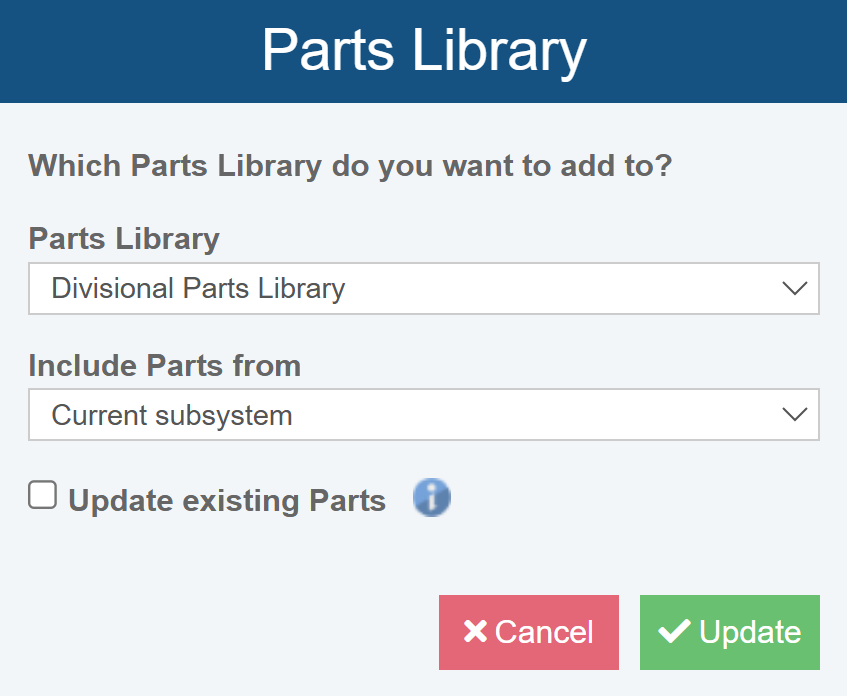
If you only have a single Prediction Parts Library, the Parts Library field will be disabled and show the name of the Parts Library.
If you have more than one Prediction Parts Library, select the one you want to update in the Parts Library field.
Denote your choice for Include Parts from - Current subsystem, Current subsystem and all children, or Entire system.
Select Update existing Parts if you want the Part records that already exist in the Parts Library to be updated with the data from the current Analysis.
Click Update.
The Update Parts Library dialog appears to indicate the Parts Library update is complete.