RBD Maintenance Tasks Library
Within Relyence RBD, you can define maintenance tasks for use in any RBD. This can be helpful when maintenance tasks and schedules are shared across multiple Blocks and/or applicable in several RBDs. Defining the maintenance tasks in the RBD Maintenance Tasks Library reduces repetitive setup, helps standardize task durations and other maintenance parameters, and makes it easier to keep common maintenance strategies consistent in your block diagram analysis.
To review and/or set up Maintenance Tasks in Relyence RBD, select your RBD in the All RBDs pane and make sure the RBD tab is selected showing the block diagram. Then, from the Sidebar, select Libraries>Maintenance Tasks.
The RBD Maintenance Tasks Library dialog appears. Click Got It!, if needed, to clear the informational message.
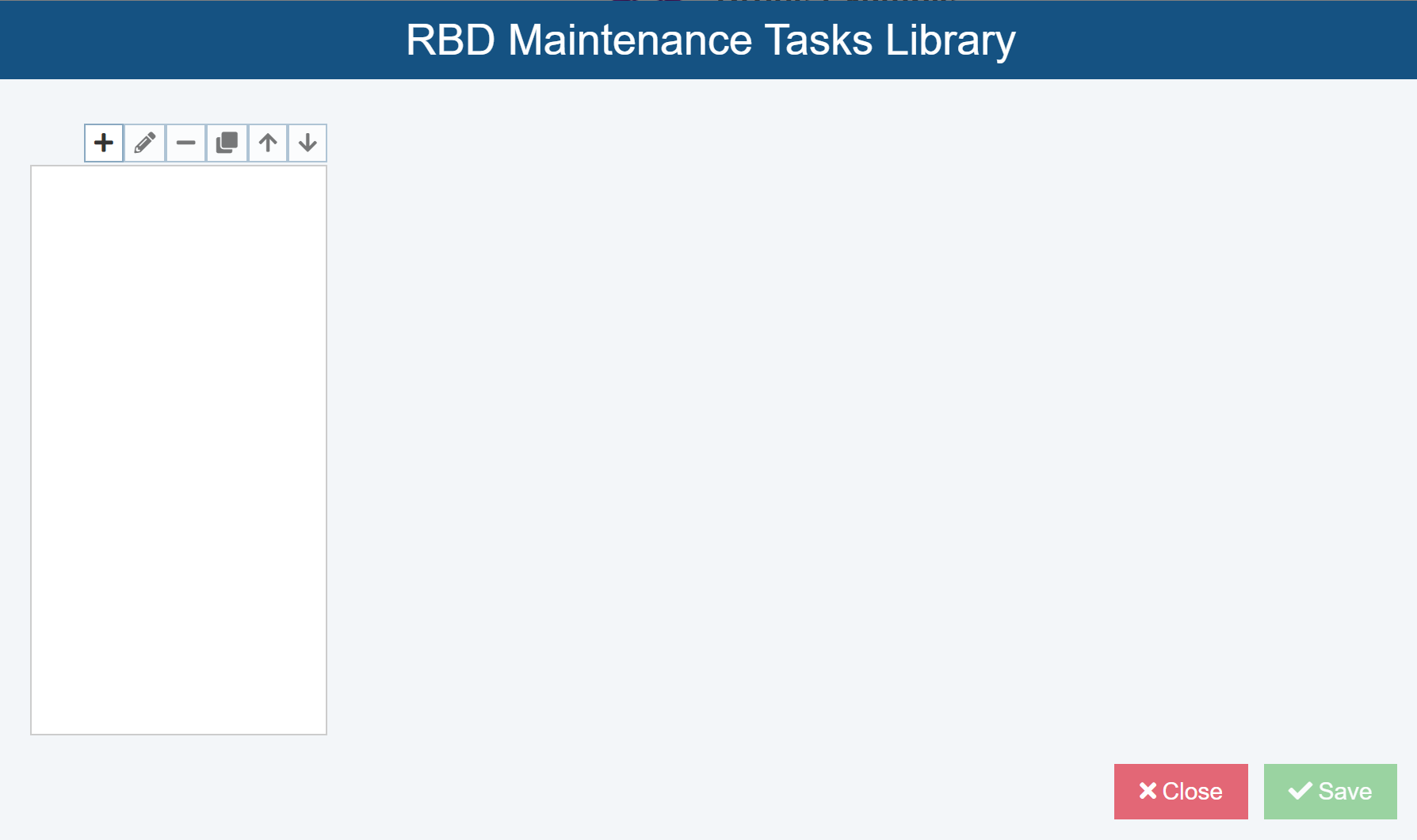
Use the buttons above the left pane that lists Maintenance Tasks  to:
- Add new Maintenance Task
- Edit an existing Maintenance Task
- Delete the selected Maintenance Task
- Copy the selected Maintenance Task
- Move Up the selected Maintenance Task
- Move Down the selected Maintenance Task
Set up a Maintenance Task
When you click to Add (+) a new Maintenance Task, the Add Maintenance Task dialog appears.
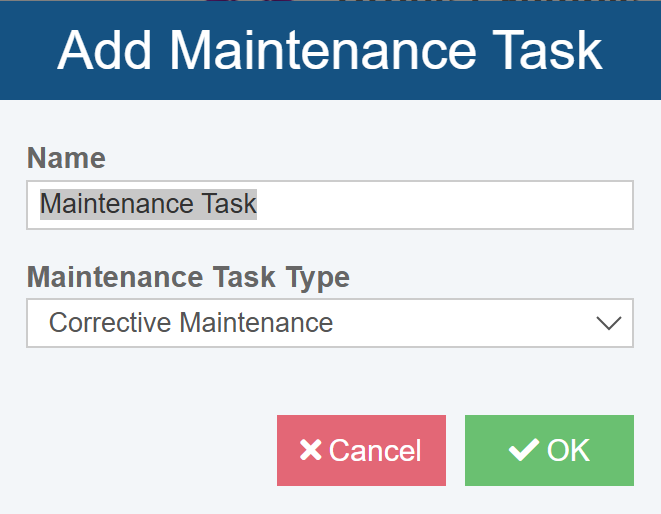
Enter a Name for the Maintenance Task, select the Maintenance Task Type and then click OK.
Then, establish the parameters for your Maintenance Task, dependent upon the Maintenance Task Type.
Set up a Corrective Maintenance Task
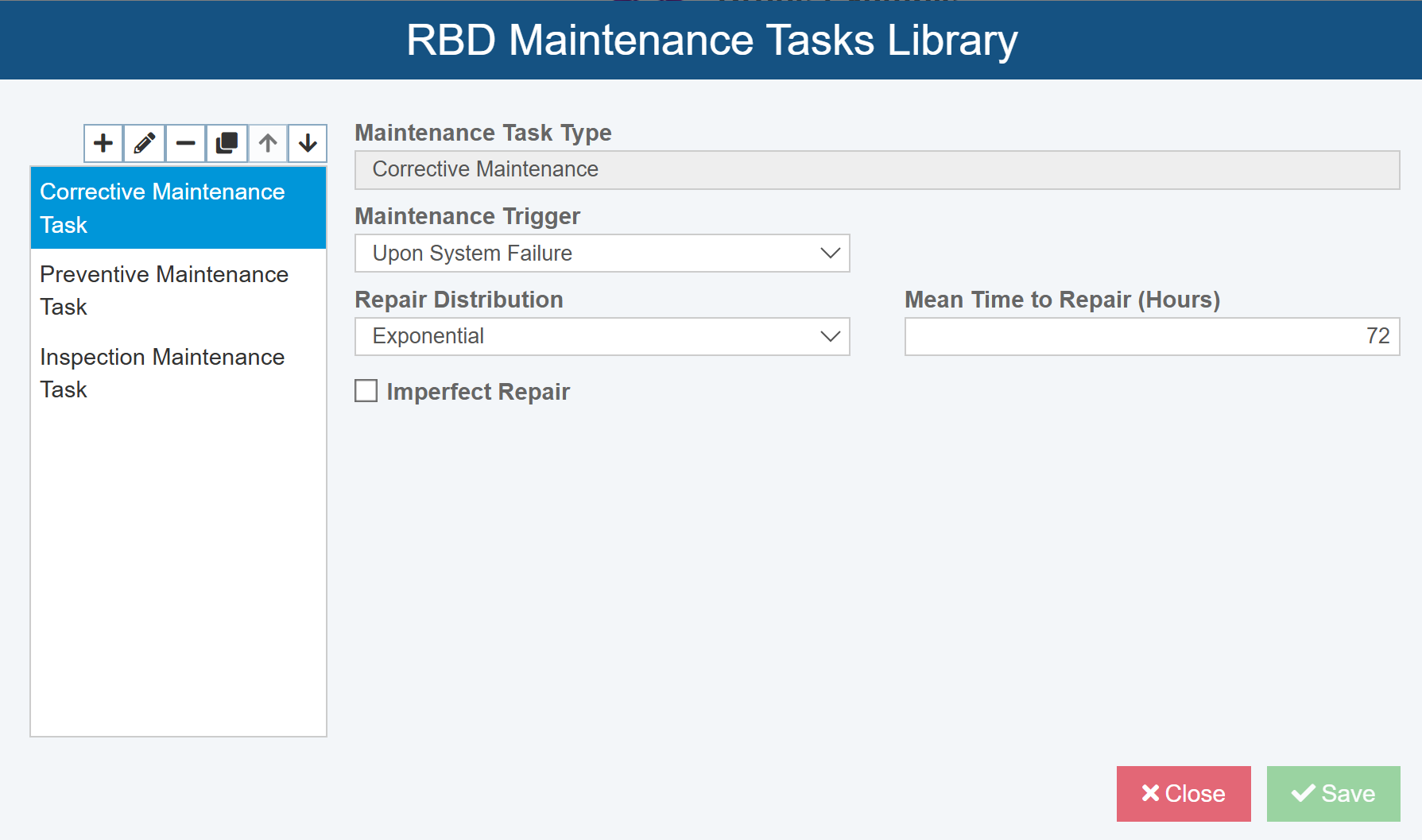
To define a Corrective Maintenance Task, enter the following inputs:
- Maintenance Trigger: Allows you to define what behavior defines the need for the corrective maintenance. Choices include:
- Immediate
- Upon Inspection
- Upon System Failure
- Upon System Failure or Inspection
- Repair Distribution: Distribution for the repair data. It defines what details should be entered to define the repair time. For example, if Repair Distribution is Exponential, you define Mean Time to Repair (Hours) for the task.
- Imperfect Repair: check this box if the repair does not restore the component to an as-good-as-new condition and define additional details to represent maintenance that corrects a failure or improves a block's condition while leaving some accumulated age or damage in place
- Restoration Factor: A value from 0 to 1 that indicates how much of the block's applicable accumulated damage is removed by the maintenance action. A value of 1 represents a perfect repair and resets the block's effective age to 0, while a value of 0 removes no accumulated damage. Values between 0 and 1 partially reduce effective age. For example, a Restoration Factor of 0.8 removes 80% of the applicable accumulated damage and leaves 20% in place.
- Restoration Type: Determines which accumulated damage is reduced.
- All Operating Cycles: applies the Restoration Factor to the block's total effective age
- Last Operating Cycle Only: applies the Restoration Factor only to the age accumulated since the previous maintenance action
Set up a Preventive Maintenance Task
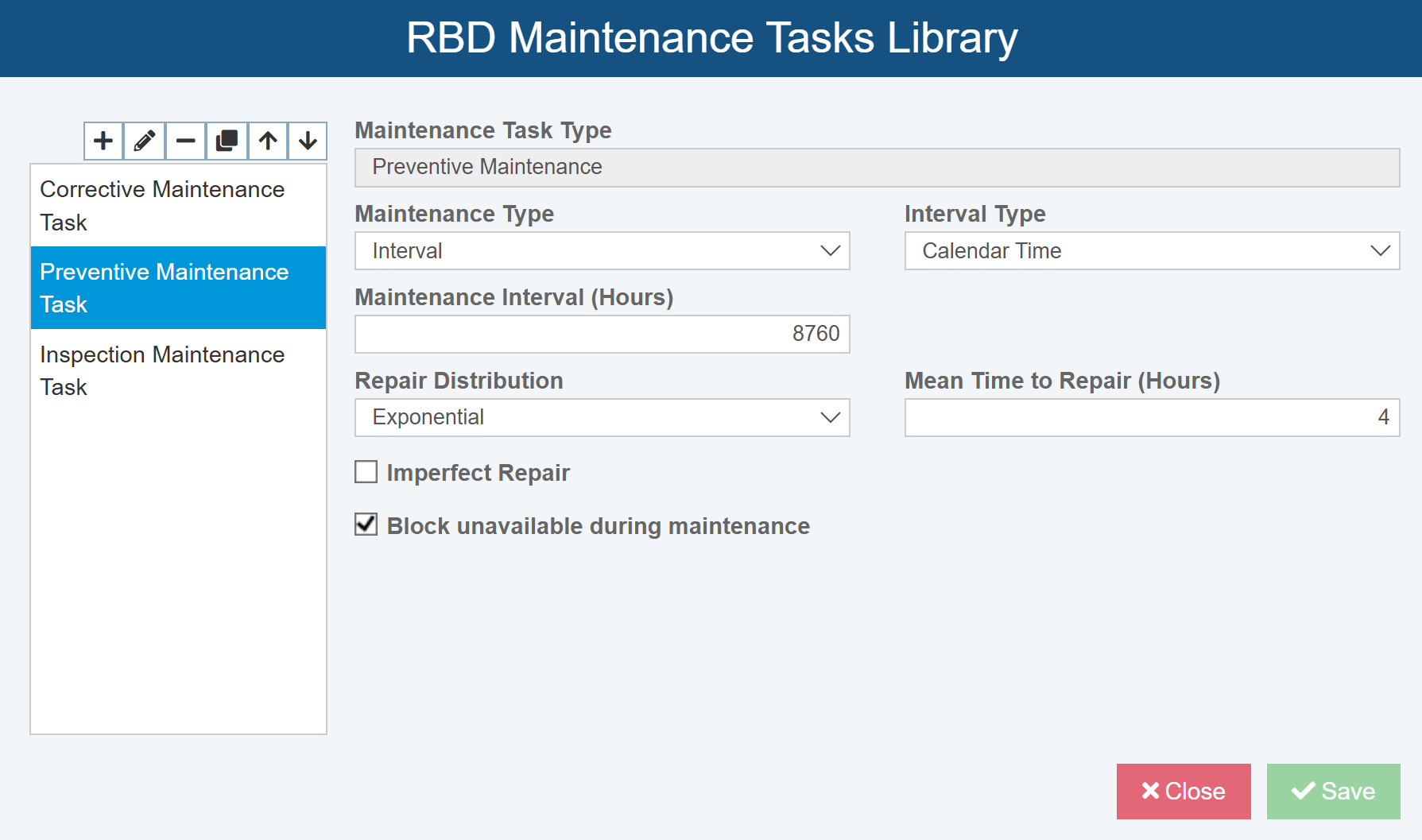
To define a Preventive Maintenance Task, enter the following inputs:
- Maintenance Type: Identify if the preventive maintenance task occurs periodically based on an interval of time (Interval) or when specific conditions are met (On Condition).
- Interval: Preventive maintenance is performed at specified intervals of time based on calendar time or the block's accumulated effective age.
- Interval Type (Maintenance Type = Interval only)
- Calendar Time
- Item Age
- Interval Type (Maintenance Type = Interval only)
- On Condition: Preventive maintenance is performed when a certain condition meets a defined threshold.
- Condition Type
- Life Proportion: Condition Threshold is a proportion from 0 to 1 that indicates what proportion of the block's life needs to have passed before preventive maintenance can begin.
- Time to Failure: Condition Threshold is a duration in hours that indicates the preventive maintenance can only occur when the time left until the block fails is less than or equal to the value.
- Maintenance Trigger: Allows you to define what behavior defines the need for the corrective maintenance. Choices include:
- Immediate
- Upon Inspection
- Upon System Failure
- Upon System Failure or Inspection
- Condition Type
- Interval: Preventive maintenance is performed at specified intervals of time based on calendar time or the block's accumulated effective age.
- Maintenance Interval (Hours): Define how often the preventive maintenance occurs.
- Repair Distribution: Distribution for the repair data. It defines what details should be entered to define the repair time. For example, if Repair Distribution is Exponential, you define Mean Time to Repair (Hours) for the task.
- Imperfect Repair: check this box if the repair does not restore the component to an as-good-as-new condition and define additional details to represent maintenance that corrects a failure or improves a block's condition while leaving some accumulated age or damage in place
- Restoration Factor: A value from 0 to 1 that indicates how much of the block's applicable accumulated damage is removed by the maintenance action. A value of 1 represents a perfect repair and resets the block's effective age to 0, while a value of 0 removes no accumulated damage. Values between 0 and 1 partially reduce effective age. For example, a Restoration Factor of 0.8 removes 80% of the applicable accumulated damage and leaves 20% in place.
- Restoration Type: Determines which accumulated damage is reduced.
- All Operating Cycles: applies the Restoration Factor to the block's total effective age
- Last Operating Cycle Only: applies the Restoration Factor only to the age accumulated since the previous maintenance action
- Block unavailable during maintenance: Define if the block is available or not during the preventive maintenance.
Set up an Inspection Task
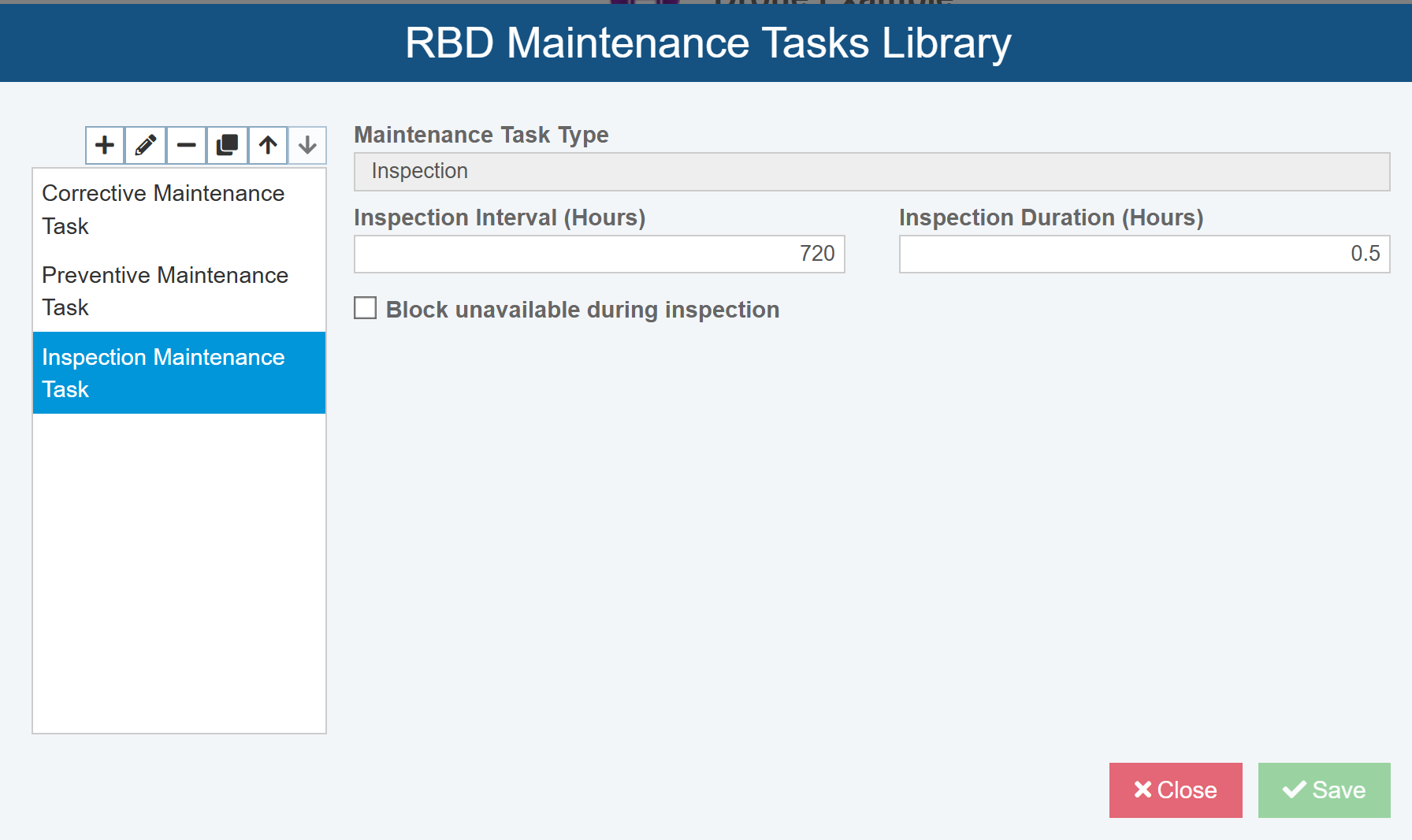
To define an Inspection Task, enter the following inputs:
- Inspection Interval (Hours): Define how often the inspection occurs.
- Inspection Duration (Hours): Define how long the inspection takes.
- Block unavailable during inspection: Define if the block is available or not during the inspection.
Click Save and Close to return to the Analysis.
Assign Maintenance Task to Blocks
Once you have your Corrective, Preventive and/or Inspection Maintenance Tasks established in the RBD Maintenance Tasks Library dialog, assign the relevant Maintenance Tasks to your Block via the Block Properties.
To do so, select the Block for which you have a Maintenance Task, and in the Properties pane, complete these steps:
1. Mark the Block as Repairable.
2. For Repair Type, select Maintenance Tasks.
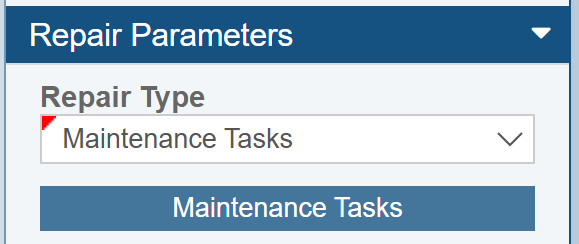
3. Click the Maintenance Tasks button, click to Save, if needed, and on the Maintenance Tasks dialog, choose to enable the relevant Corrective Maintenance, Preventive Maintenance, and/or Inspection maintenance tasks.
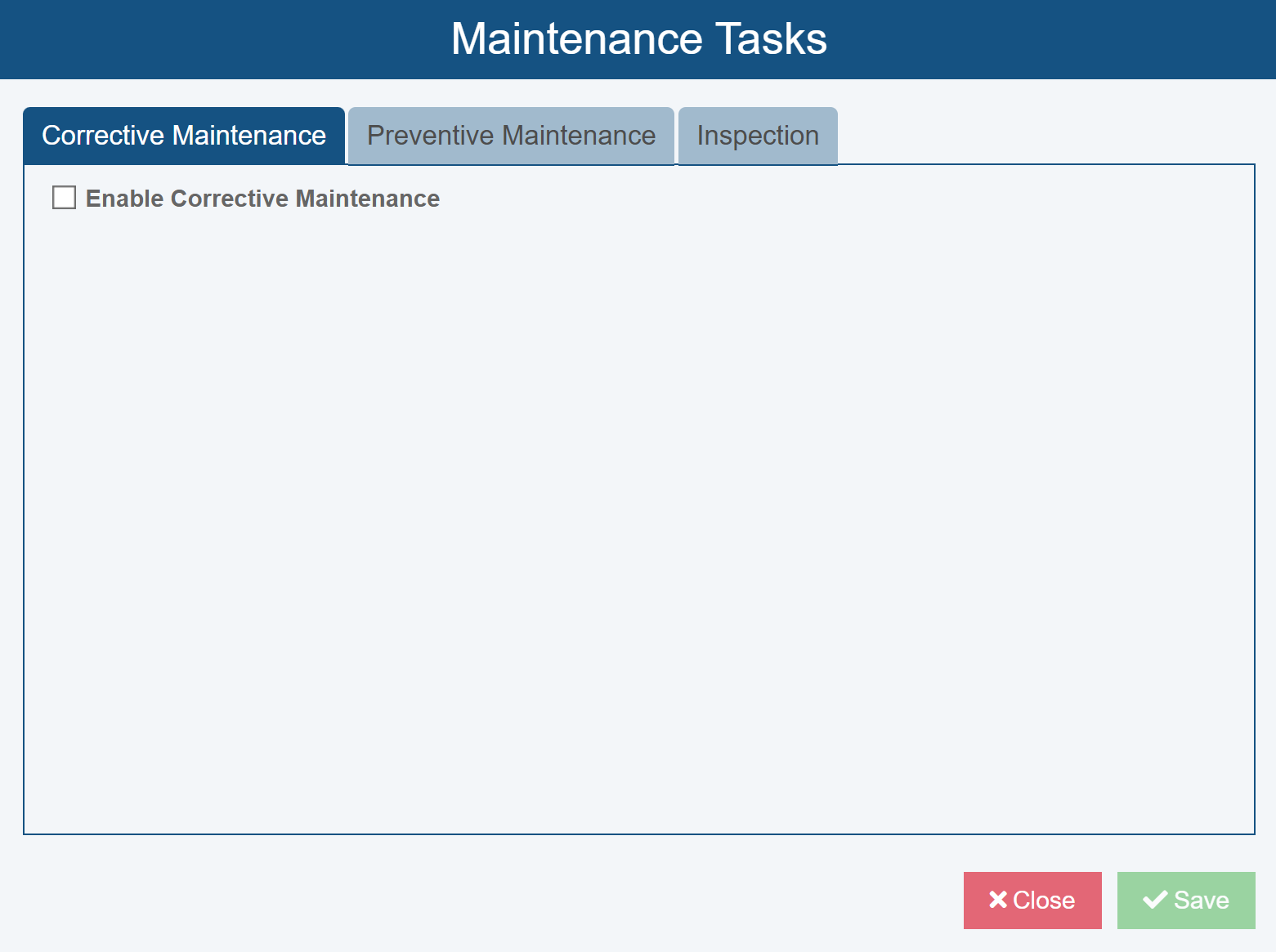
4. Go to the relevant tab, click the Enable... checkbox and either assign a Library Task using the selector button (button with 3 dots) and Library Tasks dialog or enter task details manually.
5. Click Save and Close to return to the Analysis.
For example, these inputs would assign the sample Corrective Maintenance Task to the Block.