Using FMEA SmartSuggest to Add Controls to Process Controls
From the Control Plan table worksheet in Relyence PFMEA, SmartSuggest allows you to identify Detection Controls and Prevention Controls from the PFMEA Worksheet and add them as Process Controls on the Control Plan.
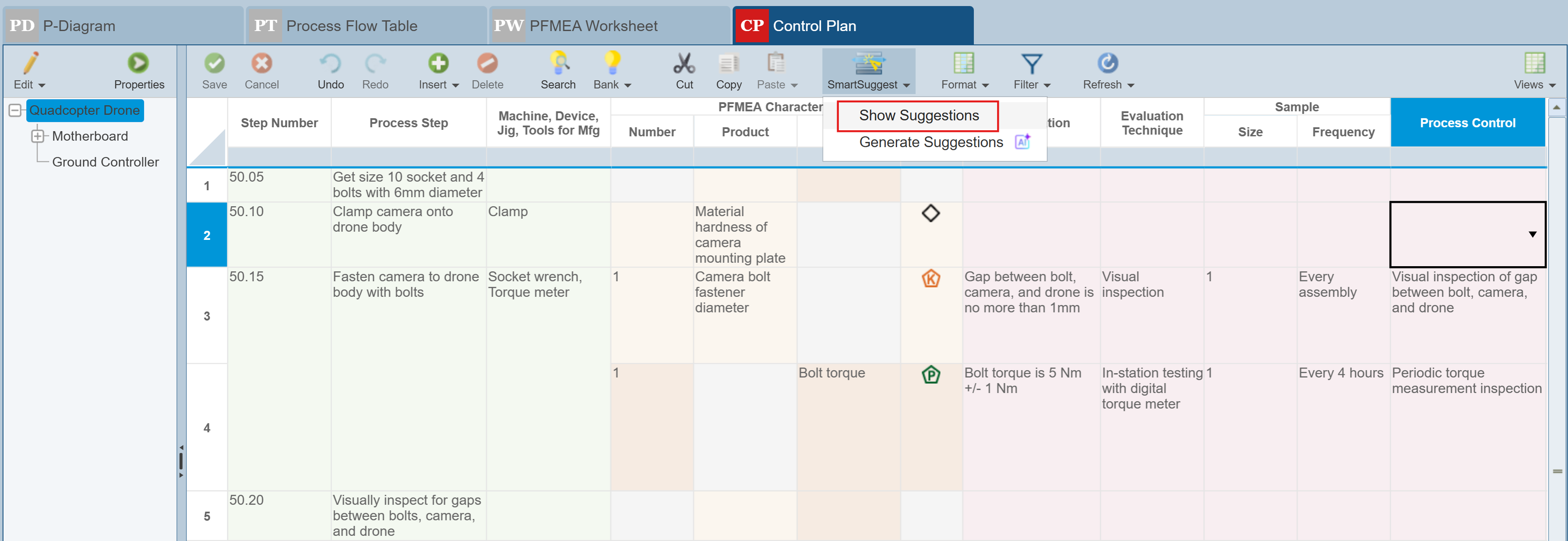
When on the Control Plan, select a cell in the Process Control column and to display the PFMEA SmartSuggest panel to the right of the worksheet, you can use the SmartSuggest button in the toolbar to select Show Suggestions.
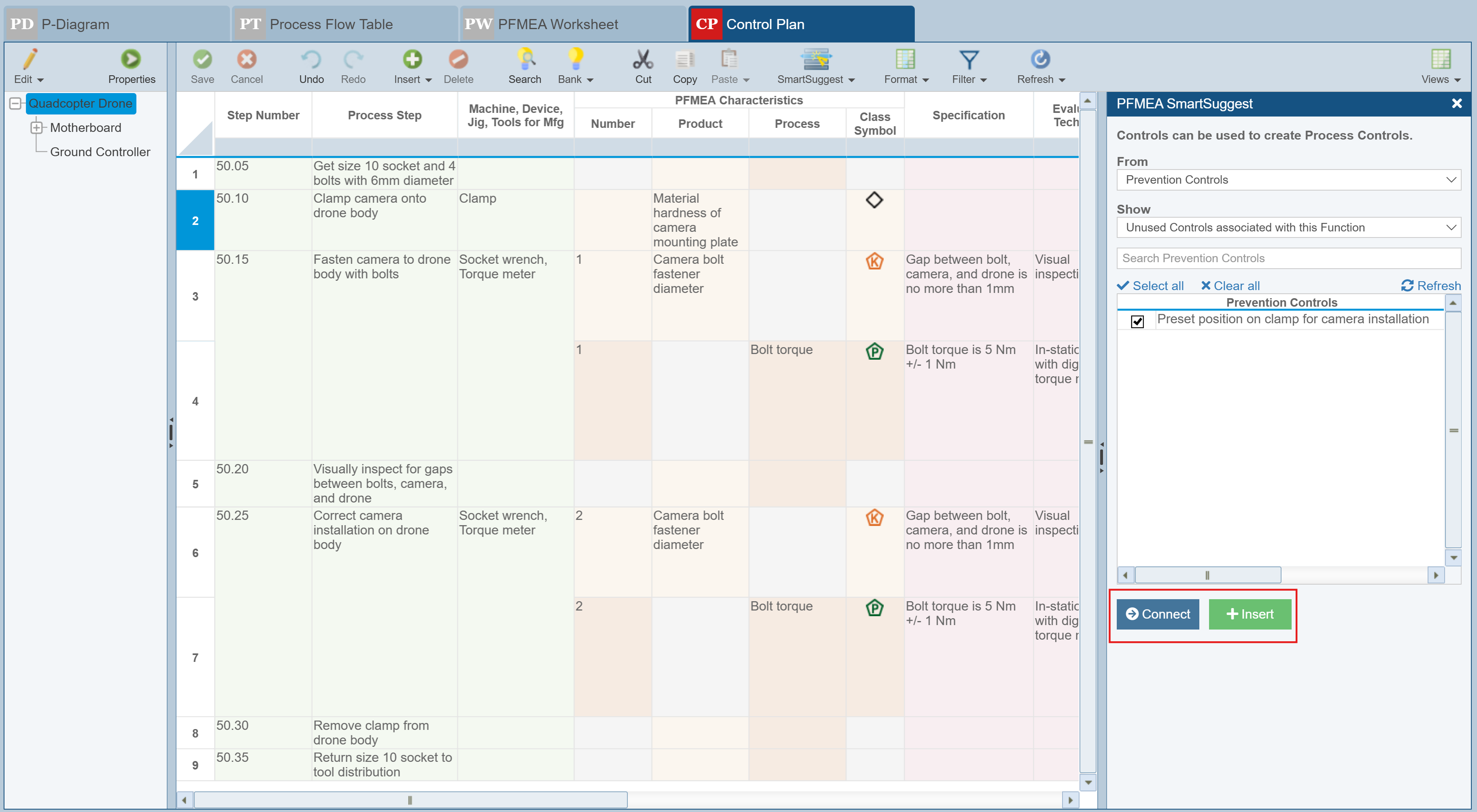
The PFMEA SmartSuggest panel is displayed to the right of the Control Plan worksheet.
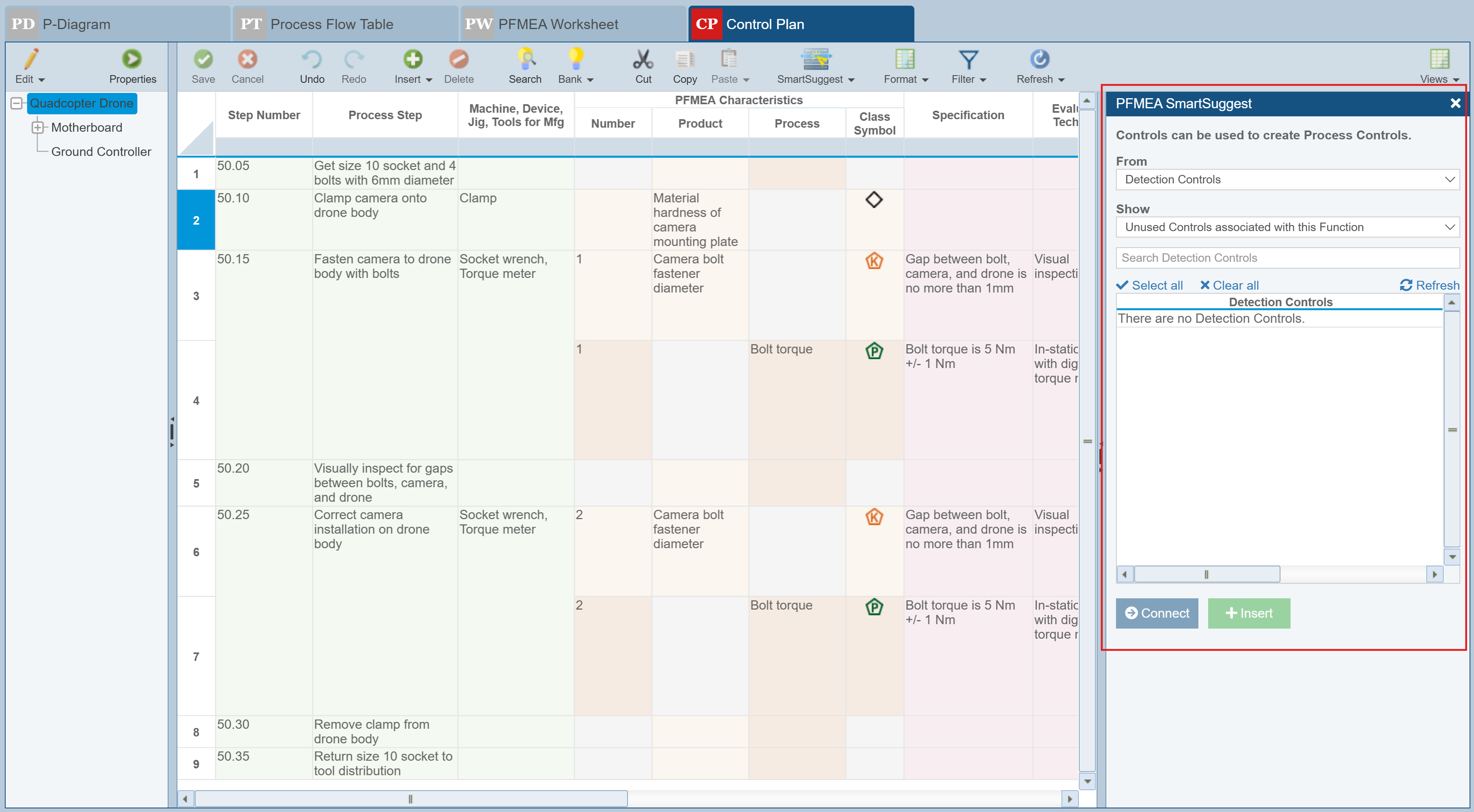
The PFMEA SmartSuggest pane is useful on the Control Plan table when the Process Control field is selected for a Control record.
The From field allows two choices:
- Detection Controls
- Prevention Controls
The Show field allows three choices:
- All values; this will show all the Controls that are defined in your PFMEA.
- Controls associated with this Function; this will show all the Controls that are used on the PFMEA Worksheet and associated with the current Function (Process Step).
- Unused Controls associated with this Function (Process Step); this will only show Controls associated with the current Function (Process Step) that have not yet been used by the Control Method.
The table that is displayed will show different information, depending on what Function (Process Step) is selected on the Control Plan worksheet:
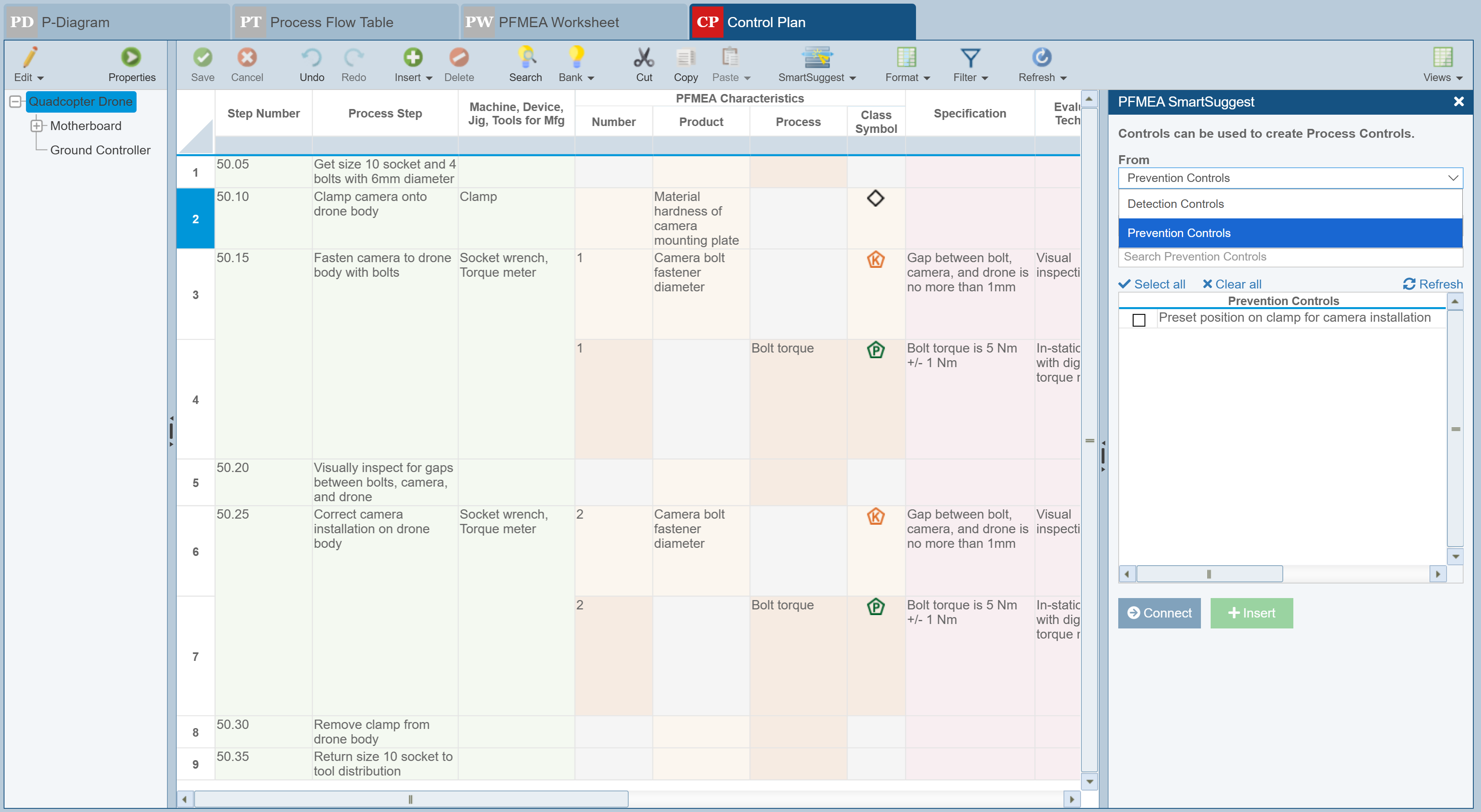
The table will show the relevant Detection Controls or Prevention Controls.
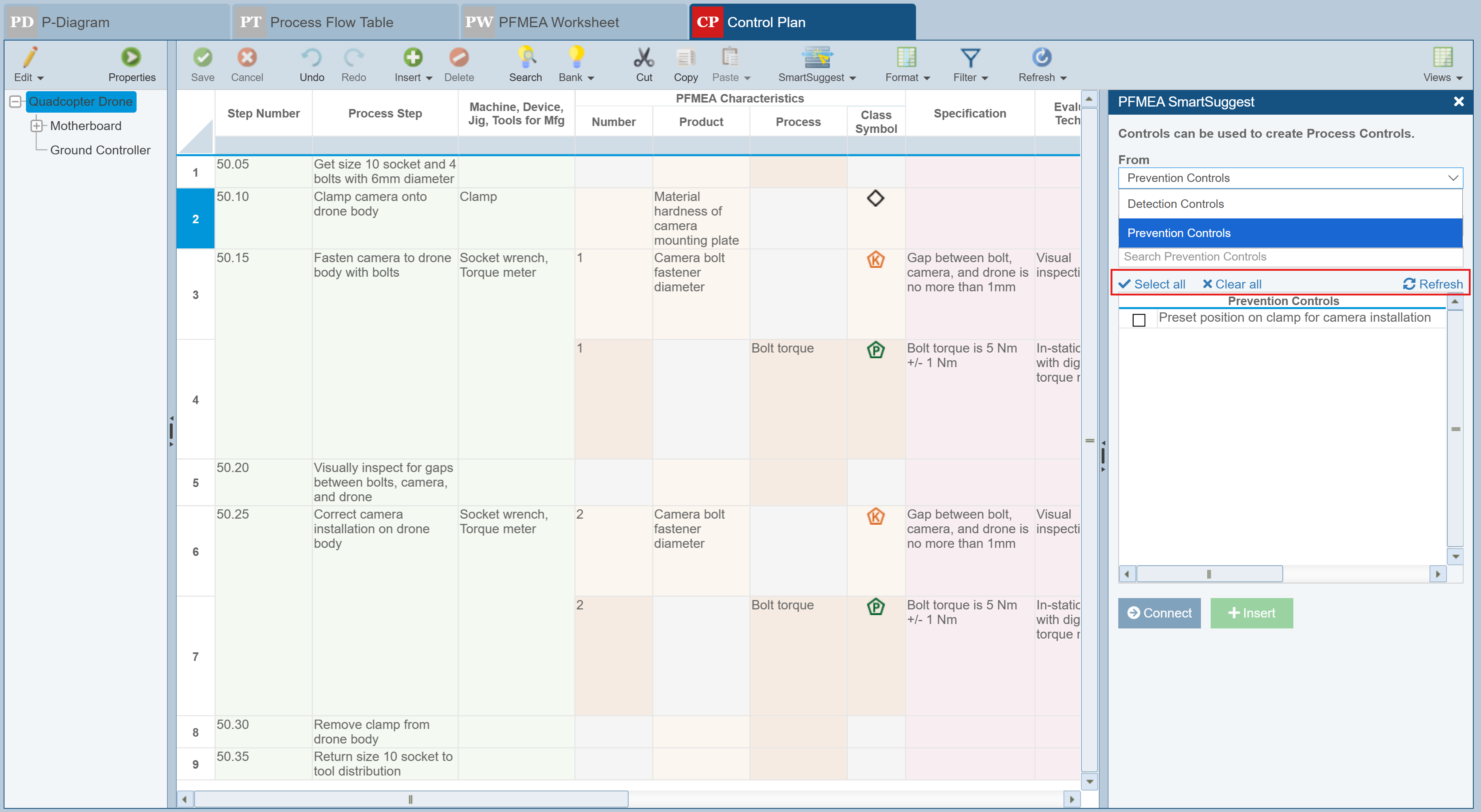
Regardless of the Controls shown in the table, the following links appear just above the table:
- Select all - clicking this checks all records in the table
- Clear all - clicking this clears all checked records in the table
- Refresh - clicking this updates the Detection Control or Prevention Controls table
Below the table are two buttons to connect or insert Detection Controls or Prevention Controls as Process Controls.
- Connect - to replace the currently selected Process Control in the Control Plan to the Control selected on the PFMEA SmartSuggest pane
- Insert - to insert the Control selected on the PFMEA SmartSuggest pane
When finished reviewing or adding Controls, click the X in the top right corner of the PFMEA SmartSuggest pane to close it.