Creating and Using Spare Pools
Within Relyence RBD, for any RBD, you can account for spare pools in the analysis.
A spare pool is a collection of spare parts for any block, such that if a block fails, it is replaced by a spare if the spare pool is not empty at the time of failure.
Parts in spare pools are assumed to be in cold standby so they will not fail while stored in the spare pool. Each part then is assumed to be good as new when replacing a failed block.
To set up spare pools in Relyence RBD, select your RBD in the All RBDs pane and make sure the RBD tab is selected showing the block diagram. Then, from the Sidebar, select Configure>Spare Pools.
The Spare Pools dialog appears for the Analysis. Click Got It!, if needed, to clear the informational message.
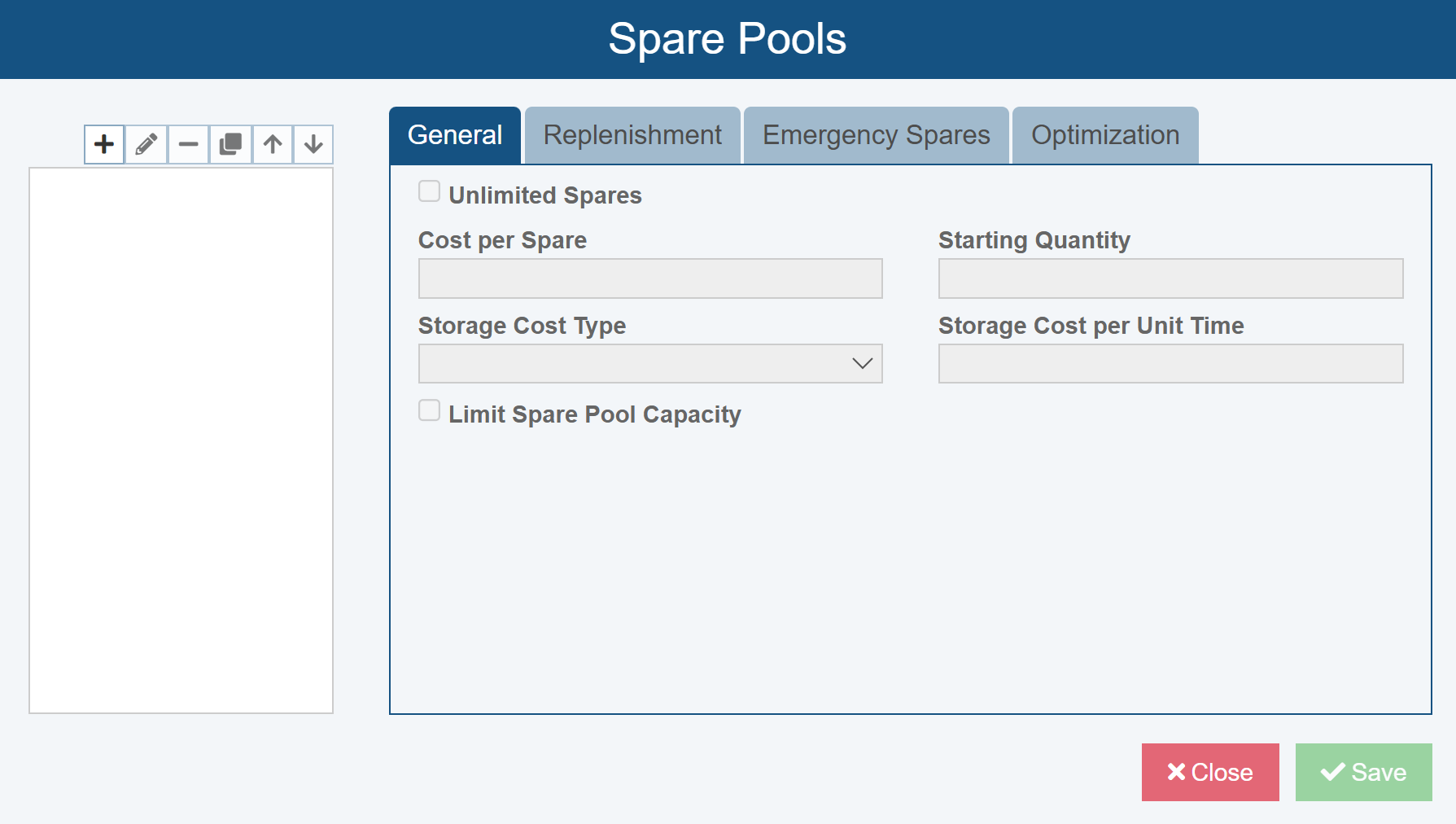
Use the buttons above the left pane that lists Spare Pools  to:
to:
- Add new Spare Pool
- Edit an existing Spare Pool
- Delete the selected Spare Pool
- Copy the selected Spare Pool
- Move Up the select Spare Pool
- Move Down the selected Spare Pool
Set up a Spare Pool
When you click to Add (+) a new Spare Pool, the Add Spare Pool dialog appears.
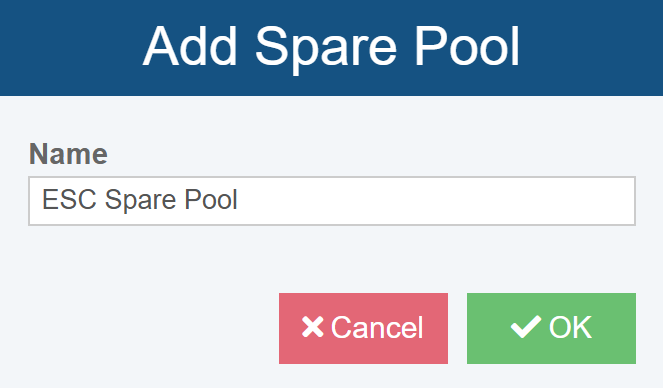
Enter a Name for the Spare Pool and then click OK.
Note: Cost values are assumed to be in dollars, but can be assumed to be in any currency value. The important thing is to be consistent. Time values are assumed to be in hours, but could be assumed to be in any time unit. Again, the important thing is to be consistent.
Then, establish the parameters for your Spare Pools including the following:
- General:
- Unlimited Spares: check this box if there is no limit to the number of spare parts in this spare pool; when checked, all other possible inputs on the General tab are hidden
- Cost per Spare: the cost of each spare part
- Starting Quantity: the initial number of spare parts in the pool
- Storage Cost Type: denotes if the spare part storage cost is Per Spare or Fixed Rate
- Storage Cost per Unit Time: denotes the cost of storing spares
- Limit Spare Pool Capacity: check this box if you need to set a maximum capacity of the number of spare parts in the spare pool; when checked, replenishments and emergencies cannot make the spare pool larger than the Maximum Capacity
- Maximum Capacity: defines the maximum number of spare parts in the spare pool
- Maximum Capacity: defines the maximum number of spare parts in the spare pool
- Replenishment:
- Replenishment Type - defines if/how spares are replenished in the spare pool; options are None, Scheduled, As Needed; additional inputs for each type are noted below:
- None - when selected, it indicates the number of spares in the spare pool is not replenished once spares are used
- Scheduled - when selected, it indicates the spare pool is replenished at a set interval based on additional replenishment inputs, including:
- Replenishment Interval - defines the scheduled time of the replenishment interval
- Quantity added per Replenish - the number of spares added per replenish
- Replenishment Transport Cost - the transport cost associated with each replenish
- Use Offsite Spare Pool - indicates if the spares come from an offsite spare pool
- Offsite Quantity Available -the number of spares in the offsite pool
- Offsite Storage Cost Type - denotes if the offsite spare part storage cost is Per Spare or Fixed Rate
- Offsite Storage Cost per Unit Time - denotes the cost of storing offsite spares
- As Needed - when selected, it indicates the spare pool is replenished when the available quantity drops to a certain amount (Replenish when Quantity drops to); key inputs include:
- Replenish when Quantity drops to - the quantity which triggers an as needed replenishment
- Replenishment Lead Time - the amount of time for the replenishment to occur
- Quantity added per Replenish - the number of spare parts added per replenishment
- Replenishment Transport Cost - the cost to transport the spares for the replenishment
- Use Offsite Spare Pool - if the spares for a replenishment are coming from an offsite spare pool; when selected, you must also define:
- Offsite Quantity Available -the number of spares in the offsite pool
- Offsite Storage Cost Type - denotes if the spare part storage cost is Per Spare or Fixed Rate
- Offsite Storage Cost per Unit Time - denotes the cost of storing offsite spares
- Replenishment Type - defines if/how spares are replenished in the spare pool; options are None, Scheduled, As Needed; additional inputs for each type are noted below:
- Emergency Spares:
- Order Emergency Spares when Spare Pool is empty: indicate if spares are restored to the spare pool when it is empty, regardless of replenishment parameters
- Additional Cost for Emergency Spares - includes any additional cost for an emergency spare, beyond the default spare cost
- Quantity added per Emergency - indicates how many spares are added in emergency
- Emergency Lead Time - denotes the time it takes for an emergency spare to be delivered to spare pool
- Emergency Transport Cost - denotes transportation cost for emergency spares
- Order Emergency Spares when Spare Pool is empty: indicate if spares are restored to the spare pool when it is empty, regardless of replenishment parameters
- Optimization:
- Until the Spare Pool is assigned to a Block in the RBDs, no Optimization parameters are displayed. A message indicates, "At least one block in the selected diagram or its subdiagrams must be linked to this Spare Pool to perform Optimization."
- Once a Spare Pool is assigned to a Block in the RBDs, the following Optimization parameters can be assigned and used:
- Quantity to Optimize - determines the Quantity which should be optimized; choices include:
- Starting Quantity
- Offsite Quantity Available
- Quantity added per Replenish
- Quantity added per Emergency
- Time - the time at which the selected Quantity is optimized
- Number of Iterations - a standard simulation parameter; the number of iterations for the simulator to run. Increasing the number of simulation iterations increases the accuracy of the results, up to a point, but also increases computational time.
- Set random number seed - a standard simulation parameter; select the checkbox and enter a value for Random Number Seed if you wish to specify the random number seed for the simulator engine. By specifying the random number seed, Relyence RBD will return the same calculated results from simulation from one calculation run to another, provided no input values have changed. Otherwise, Relyence will obtain a random number seed.
- Minimum Quantity - lower bound for the Quantity to optimize
- Maximum Quantity - upper bound for the Quantity to optimize
- Optimal Quantity - the optimized Quantity result after clicking Calculate
- Quantity to Optimize - determines the Quantity which should be optimized; choices include:
Click Save and Close to return to the Analysis.
Assign Spare Pools to Blocks as Needed and Calculate the RBD Results
Once you have your Spare Pool(s) established in the Spare Pools dialog, assign the relevant Spare Pools to your Block via the Block Properties.
To do so, select the Block for which you have a Spare Pool, and in the Properties pane, select Link to Spare Pool.
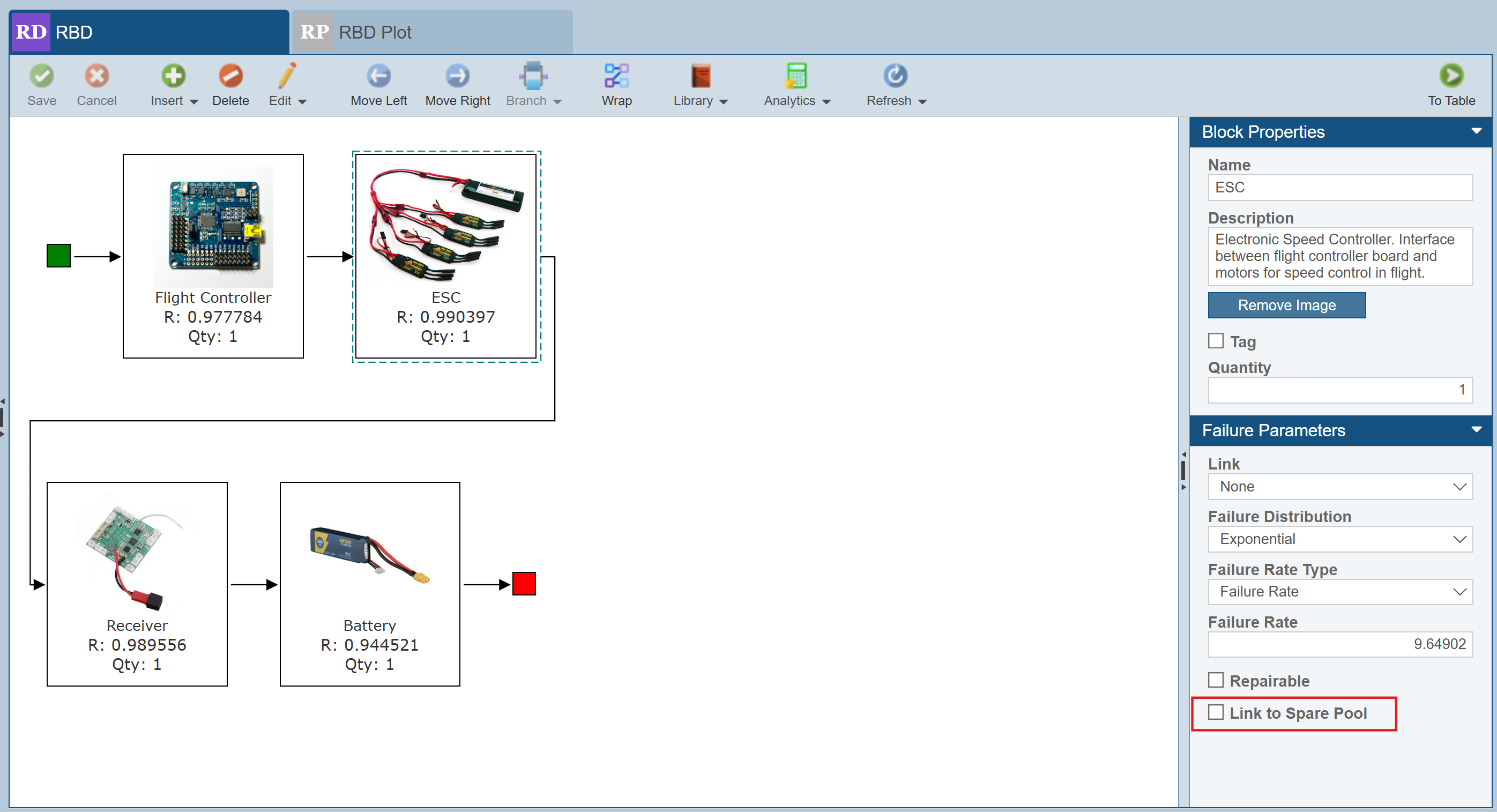
Note: When a Block is linked to a Spare Pool, the Repairable checkbox and any Repair Parameters are hidden as the Block is no longer considered repairable.
Then, assign the relevant Spare Pool and Replacement Delay. Note that the Replacement Delay is the amount of time is takes for a Spare to replace the failed Block.
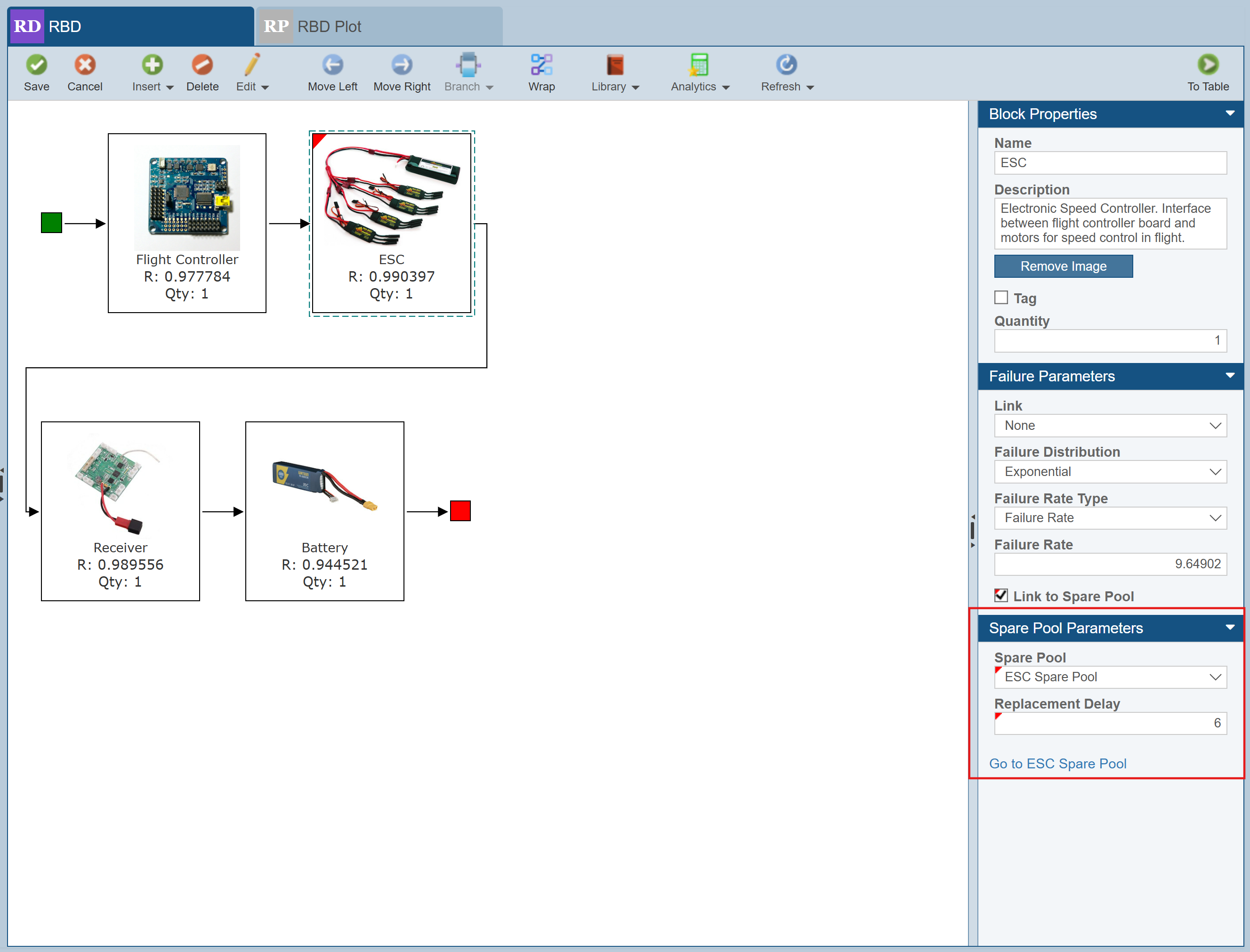
Note that if you click Go to <spare pool name>, Relyence RBD will open the Spare Pool dialog with the relevant spare pool selected.
Then, when ready to calculate the RBD results, from the Sidebar, click Calculate. The Calculate RBD dialog appears.
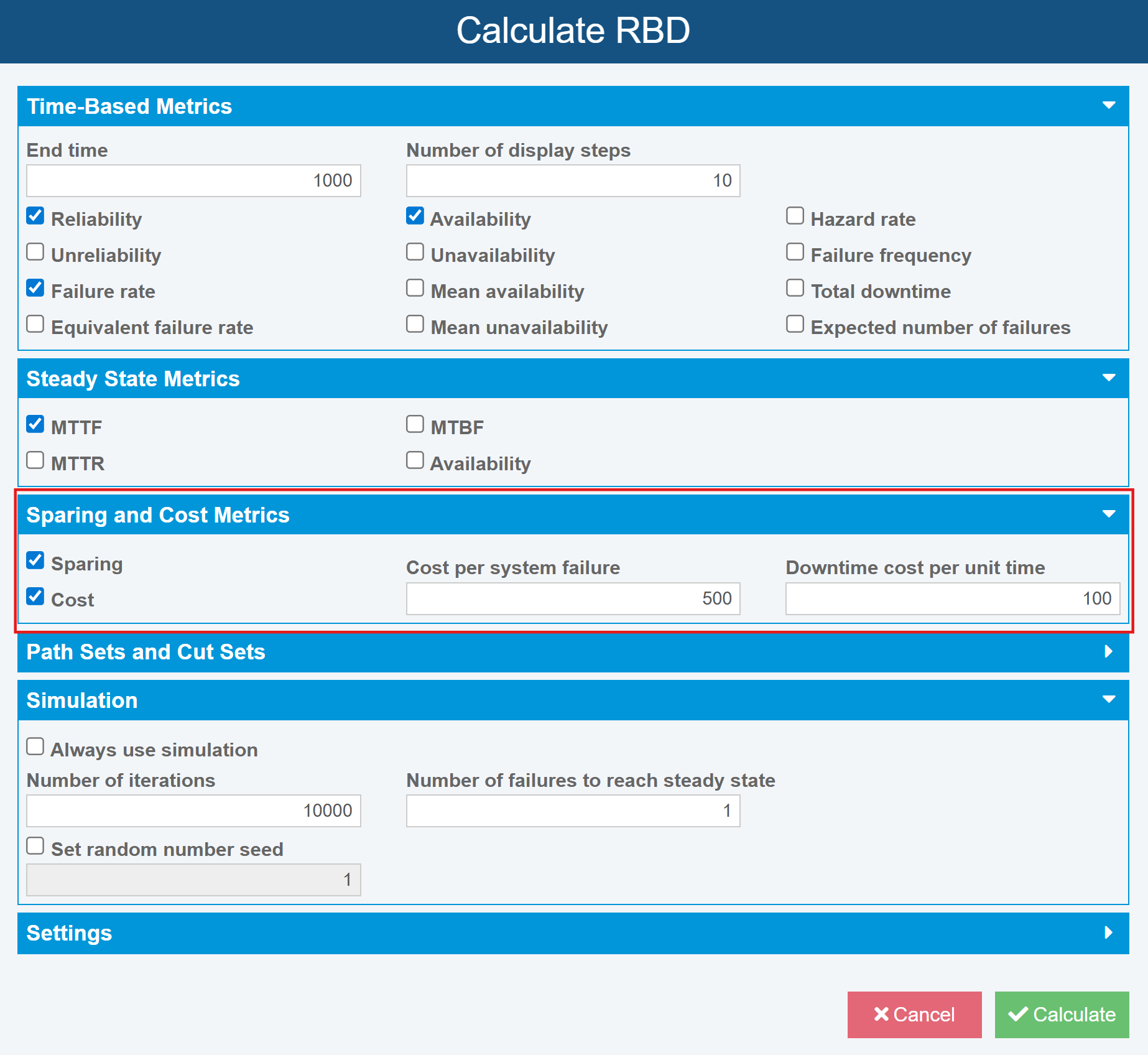
For details on all calculation parameter selections, see Performing RBD Calculations.
With Spare Pools assigned, be sure to assign Sparing and Cost Metrics.
Start by clicking Sparing to be sure spares calculations are considered.
If needed, click Cost to include relevant Cost calculations.
If Cost calculations should be included, assign Cost per system failure and Downtime cost per unit time.
Once all calculation parameters are set, click Calculate to perform the RBD calculations, including Spares and Cost calculations.
When the calculations are completed, the Results dialog appears.
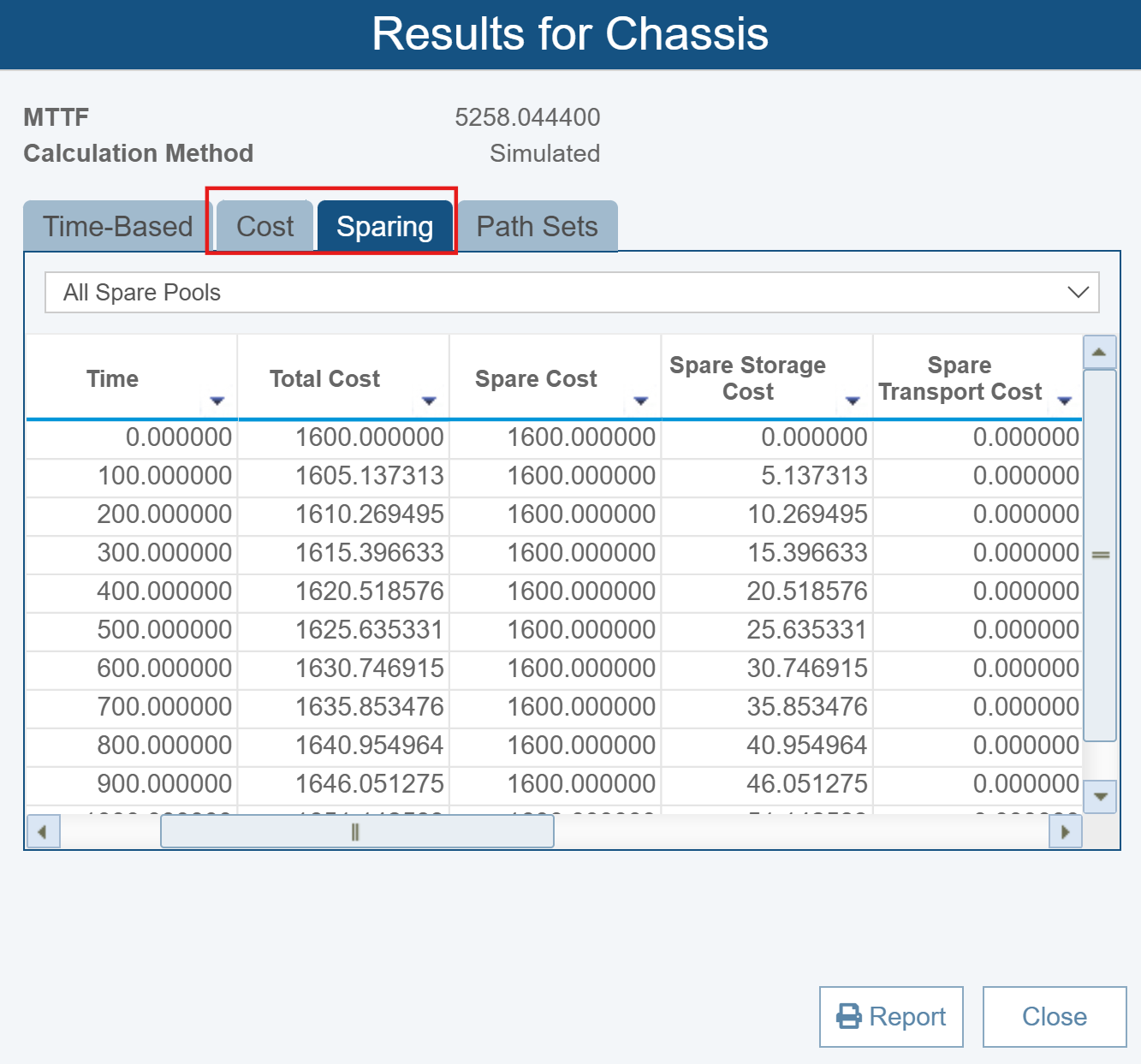
You can review all calculated results, as explained in Performing RBD Calculations.
To review Cost calculation results, click the Cost tab where you can see:
- Total Cost
- Downtime Cost
- Spare Cost
- Spare Storage Cost
- Spare Transport Cost
Note that Downtime Cost can still be calculated, even if no Spare Pools are associated with the RBD.
To review Sparing results, click the Sparing tab where you can see results for All Spare Pools and individual Spare Pools:
- Total Cost
- Spare Cost
- Spare Storage Cost
- Spare Transport Cost
- Spare Pool Quantity
- Spare Usage Count
- Number of Replenished Spares
- Number of Emergency Spares
As needed, return to the Spare Pools dialog and run the optimization for any or all Spare Pools. Select the Spare Pool to optimize, set the Optimization parameters and click Calculate.
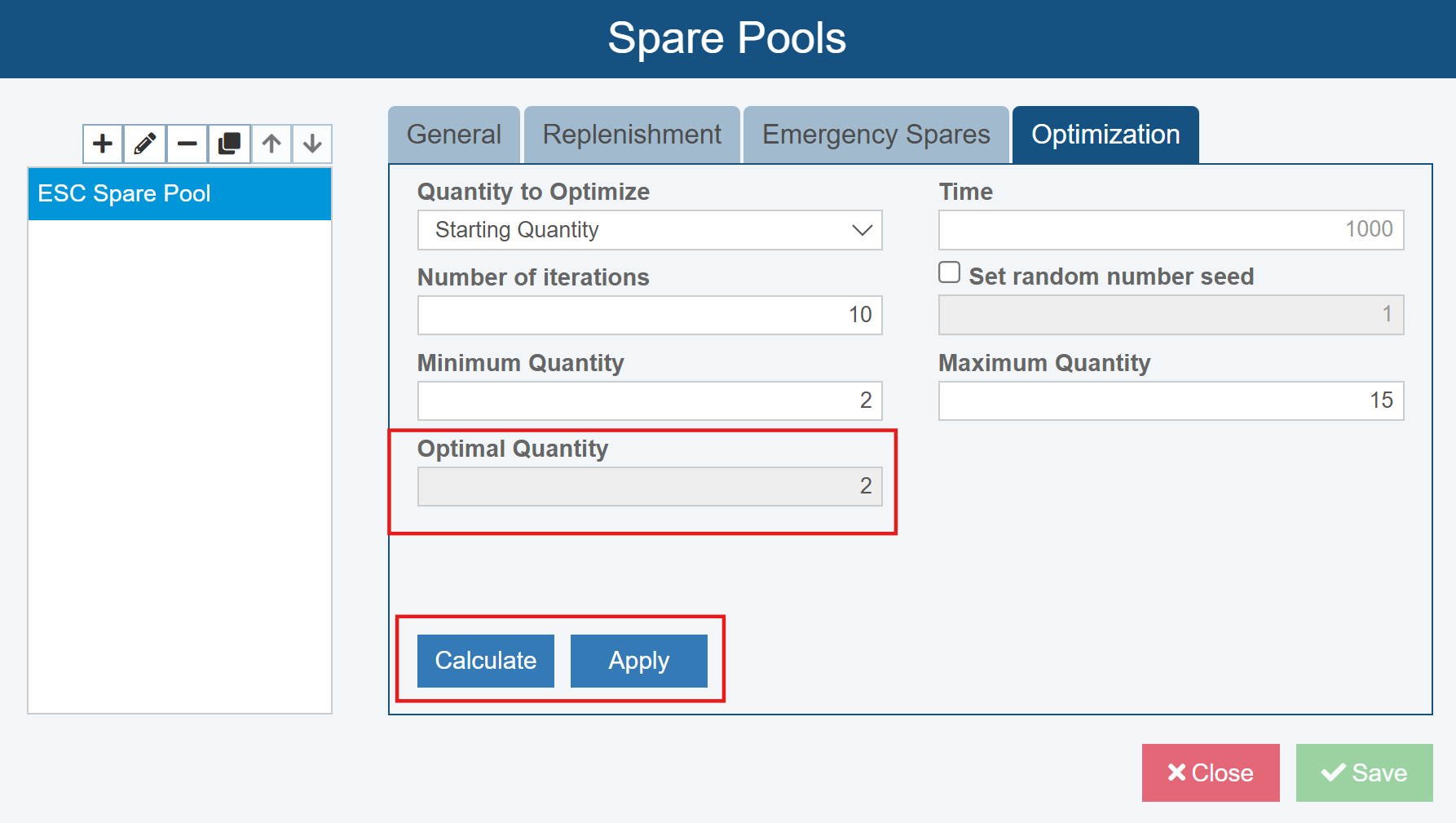
If desired, click Apply to copy the value for Optimal Quantity to one of these fields, depending on the Quantity to Optimize choice:
- If Quantity to Optimize is Starting Quantity, the Optimal Quantity is copied to Starting Quantity on the General tab
- If Quantity to Optimize is Offsite Quantity Available, the Optimal Quantity is copied to Offsite Quantity Available on the Replenishment tab
- If Quantity to Optimize is Quantity added per Replenish, the Optimal Quantity is copied to Quantity added per Replenish on the Replenishment tab
- If Quantity to Optimize is Quantity added per Emergency, the Optimal Quantity is copied to Quantity added per Emergency on the Emergency Spares tab