Modeling with FIDES 2022
FIDES 2022 was released by a group in the aerospace and defense sectors under direction of France's defense procurement agency DGA and available from Institut pour la Maitrise des Risques (IMdR), this standard applies a detailed, physics-of-failure-based methodology for electronic systems and real-world operating conditions.
Setting FIDES Data for Analysis Tree Items
When you have indicated you want to use the FIDES 2022 or FIDES 2022 Parts Count Calculation Model, several important properties will appear on the Properties pane for each Analysis Tree item. This includes the option to set your Mission Profile and Factors.
FIDES 2022 Mission Profile
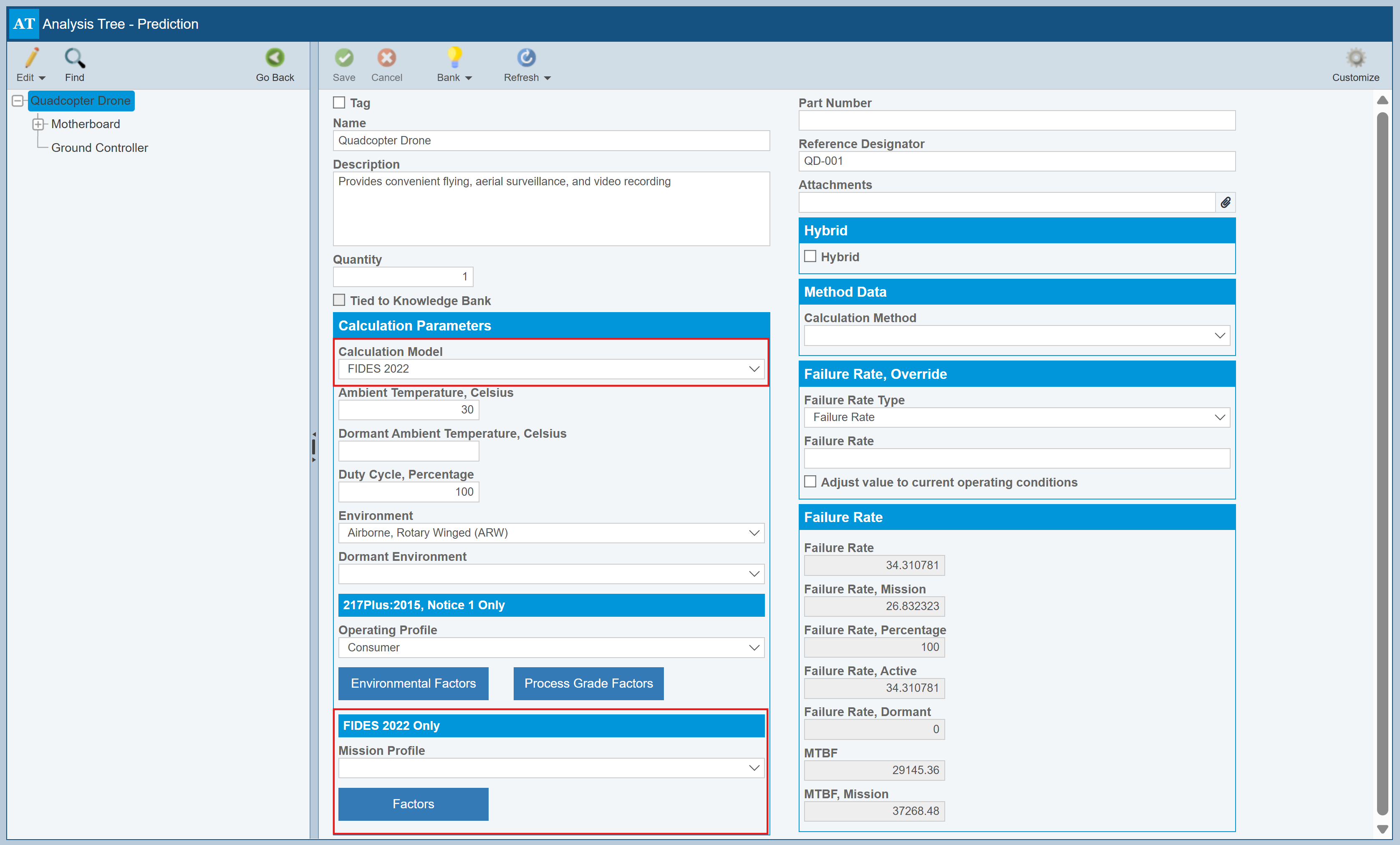
You can set the desired Mission Profile for your FIDES 2022 reliability prediction analysis in the property field shown in the above image on the Analysis Tree Properties pane.
The Mission Profile(s) can be customized from the Sidebar; click Libraries>FIDES 2022>Mission Profiles.
The FIDES 2022 Mission Profiles dialog appears.
If needed, click Got it! to clear the note about how to add a Mission Profile.
Managing FIDES 2022 Mission Profiles
The Profiles pane on the left is used to manage your FIDES 2022 Mission Profiles. The right pane is used to define the specific phases in the selected FIDES 2022 Mission Profile.
To create a new FIDES 2022 Mission Profile, click the + icon in the Profile pane. The Add Mission Profile dialog appears. Enter the name of the new FIDES 2022 Mission Profile.
To edit a FIDES 2022 Mission Profile name, select the FIDES 2022 Mission Profile to change and click the pencil icon in the Profile pane. The Edit Mission Profile dialog appears for you to rename the FIDES 2022 Mission Profile.
To delete a FIDES 2022 Mission Profile, click the - icon in the Profile pane. You will be asked if you are sure. Click Yes to permanently delete the FIDES 2022 Mission Profile.
To copy a FIDES 2022 Mission Profile, click the copy icon in the Profile pane.
Defining a FIDES 2022 Mission Profile
The right pane is used to describe the phases of the selected FIDES 2022 Mission Profile. For each phase of the FIDES 2022 Mission Profile, enter the following information, adjusting the default values, if needed:
- Phase
- Phase On
- Calendar Time (hours):
- Temperature (°C):
- ΔTemperature (°C):
- θCycling
- Number of Cycles:
- Max Cycling Temperature (°C)
- Relative Humidity (%)
- Vibration (Grms)
- Saline Pollution Level
- Environment Pollution Level
- Application Pollution Level
- Protection Level
- πApplication
To delete a phase, select the phase and click the - icon in the upper right. To move a phase up or down in the list, select the phase, and click the up or down arrow icon in the upper right.
Once complete, click Save to save the FIDES 2022 Mission Profiles.
Calculating with a FIDES 2022 Mission Profile
Once you have defined your FIDES 2022 Mission Profile(s), you can calculate using this information.
First, select the appropriate FIDES 2022 Mission Profile by completing these steps:
- Select the Analysis Tree item to which you want to assign a FIDES 2022 Mission Profile.
- From the Analysis Tree pane, select Properties.
- On the Analysis Tree Properties pane, in the FIDES 2022 Only section, for Mission Profile, select the desired FIDES 2022 Mission Profile.
Click Calculate from the Sidebar menu to calculate the reliability prediction results - for more details, see Performing Reliability Prediction Calculations.
FIDES 2022 Factors
To customize important Factors for FIDES 2022, click Libraries>FIDES 2022. From this menu, you can customize all FIDES 2022 Factors, including:
- Application Factors
- ASIC Factors
- Film Factors
- Hybrid Process Factors
- Part Manufacturing Factors
- Placement Factors
- Power Factors
- Radio Frequency Microwave (GaN) Factors
- Radio Frequency Microwave (GaAs) Factors
- Radio Frequency Microwave (Passive) Factors
- Ruggedizing Factors
When you access any of the Factors and add a new Factor, Relyence will show you the relevant questions from FIDES 2022 and you can provide the relevant answers to impact the Factor.
For example, an example Placement Factor is shown below. There is just a single question.
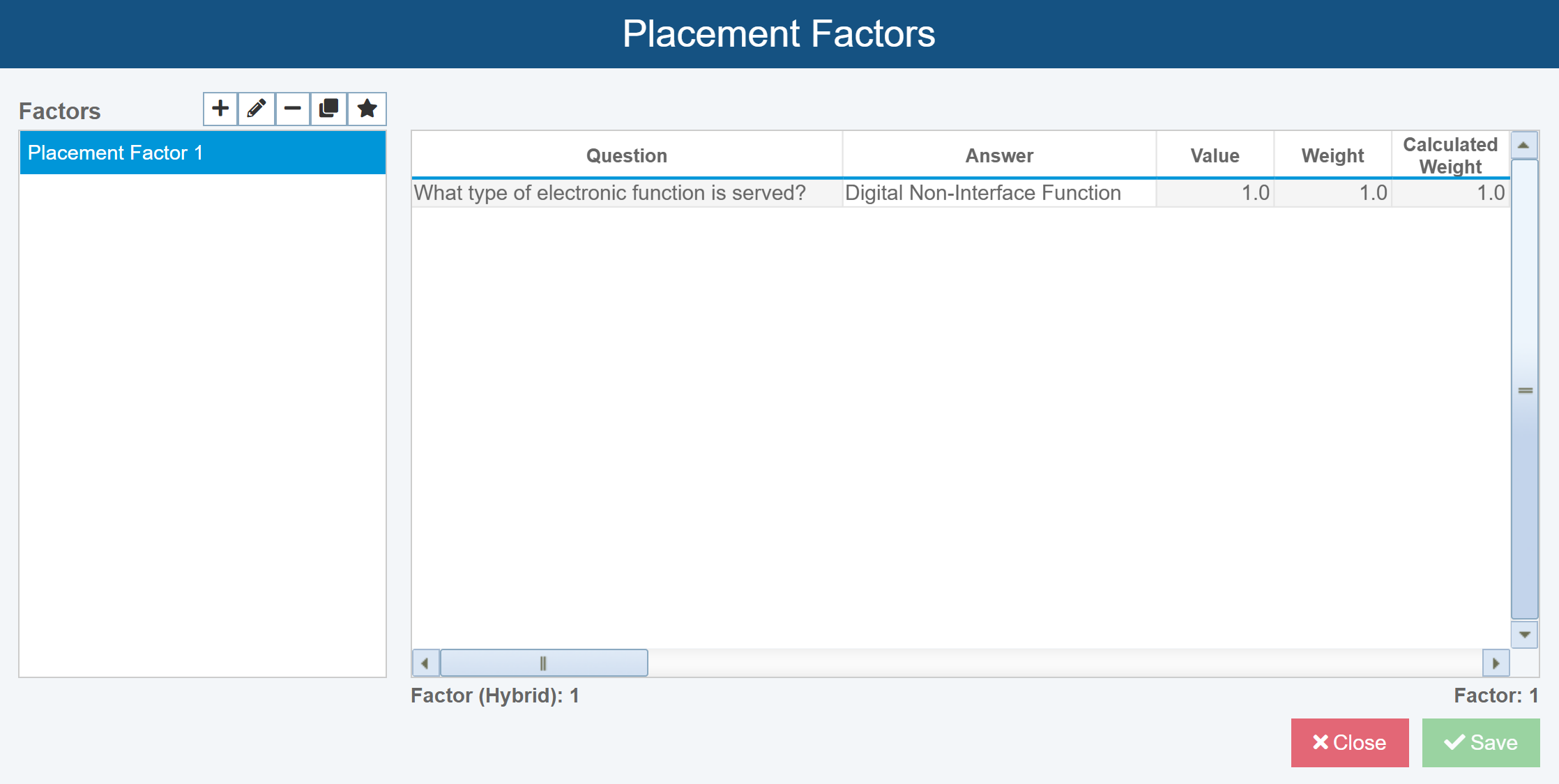
The Profiles pane on the left is used to manage your Factors. The right pane is used to answer questions to determine the relevant Factor value.
To create a Factor, click the + icon in the Profile pane. The Add Factor dialog appears. Enter the name of the new Factor.
To edit a Factor name, select the Factor to change and click the pencil icon in the Profile pane. The Edit Factor dialog appears for you to rename the Factor.
To delete a Factor, click the - icon in the Profile pane. You will be asked if you are sure. Click Yes to permanently delete the Factor.
To copy a Factor, click the copy icon in the Profile pane.
To assign a Factor as the default, click the star to Set as Default.
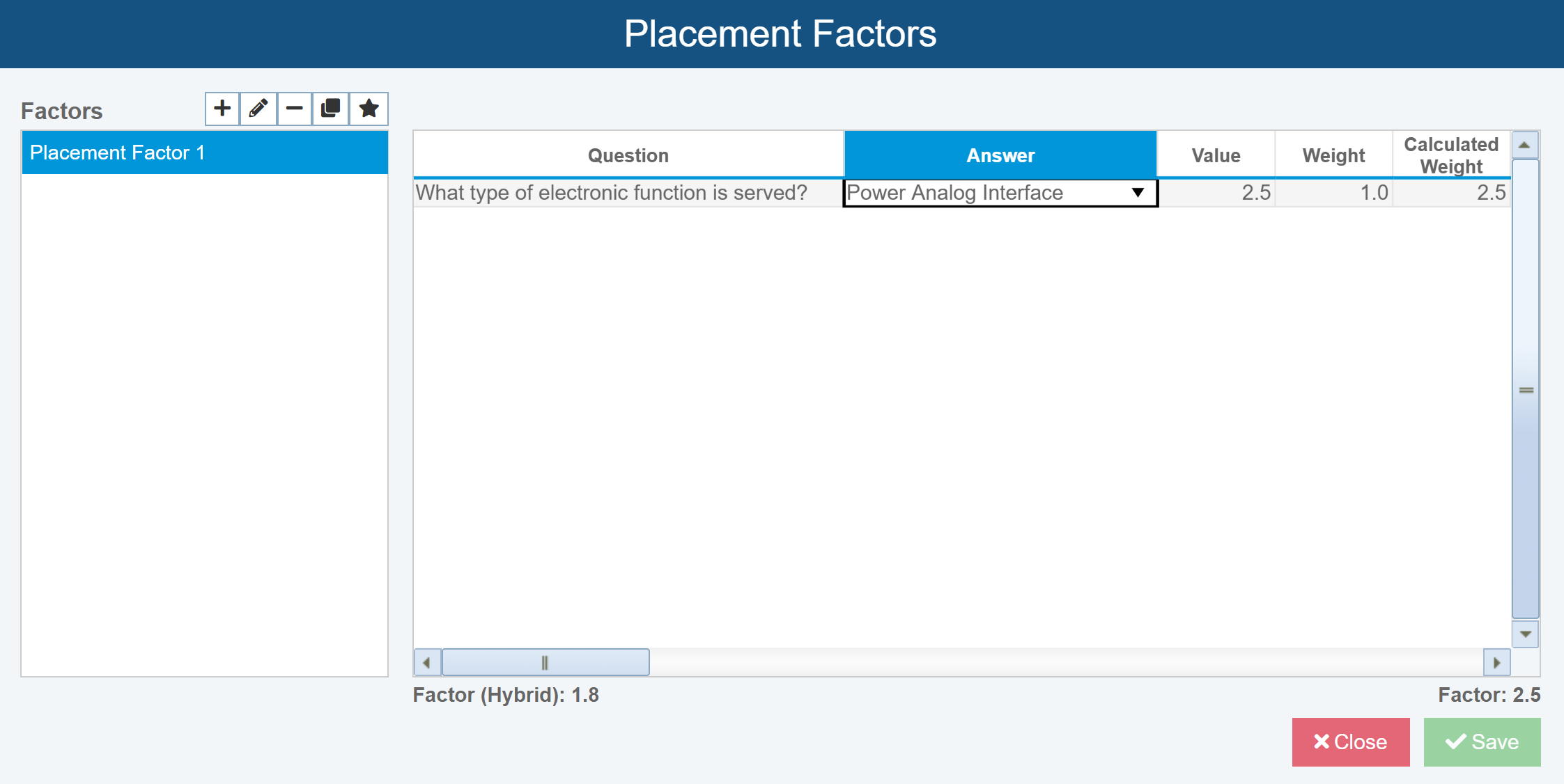
By changing the answer to the Question, the Factor in the bottom right as adjusted as per FIDES 2022.
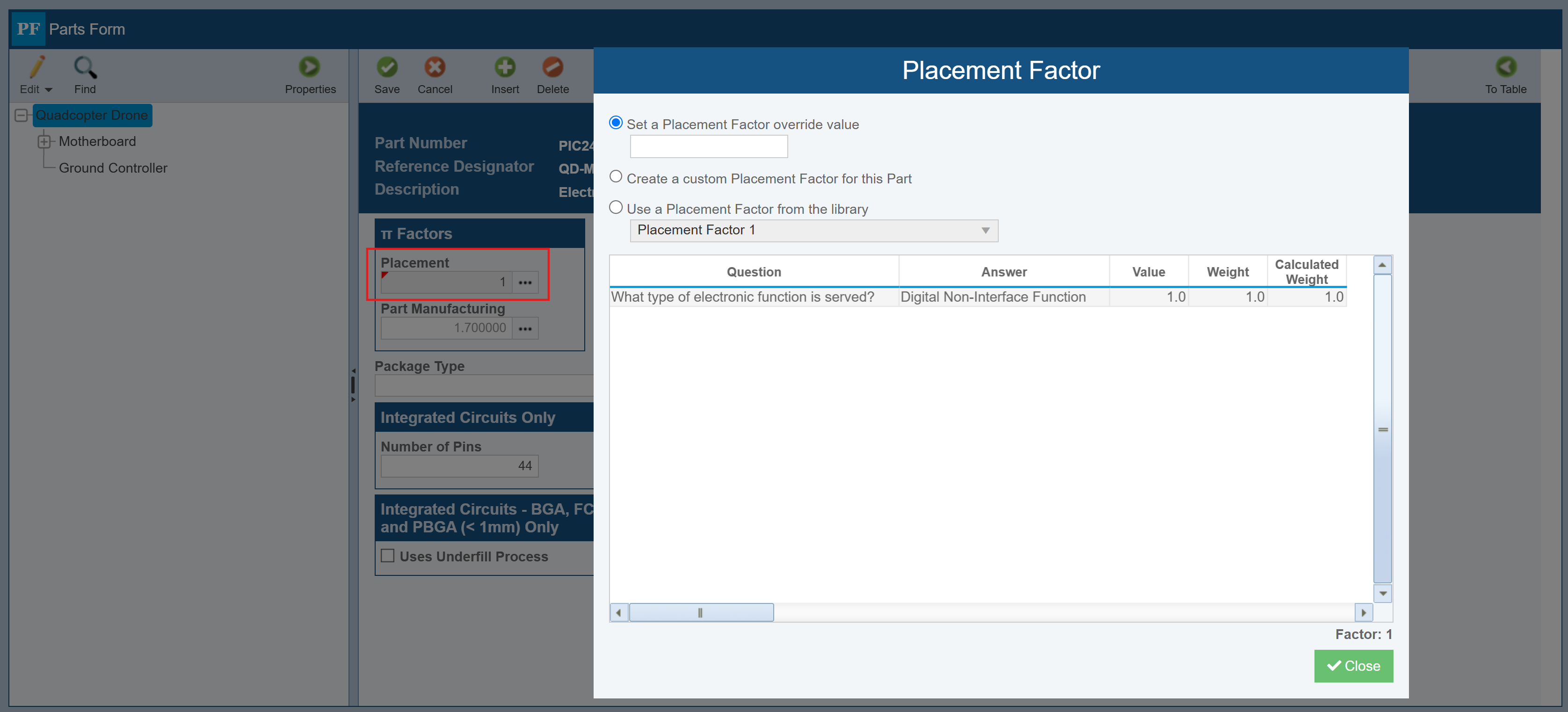
Note that you can assign customized Factors or overrides for Parts on the Part Form.
When all subsystem, part and part details have been entered, click Calculate from the Sidebar menu to calculate the reliability prediction results - for more details, see Performing Reliability Prediction Calculations.