SmartSuggest Generate Suggestions
When included in your license, the Generate Suggestions option in Relyence FMEA is available from the SmartSuggest button.
The Generate Suggestions feature is an AI-assisted tool available to help you build your FMEA. It can use ChatGPT or Copilot.
Note: If you have an on-premise installation, this option requires an active maintenance plan and the ability for your Relyence server to communicate with the Relyence application server.
With your Analysis open, any table worksheet such as the DFMEA Worksheet, click SmartSuggest>Show Suggestions.

The Generate DFMEA Suggestions panel is displayed to the right of the worksheet.
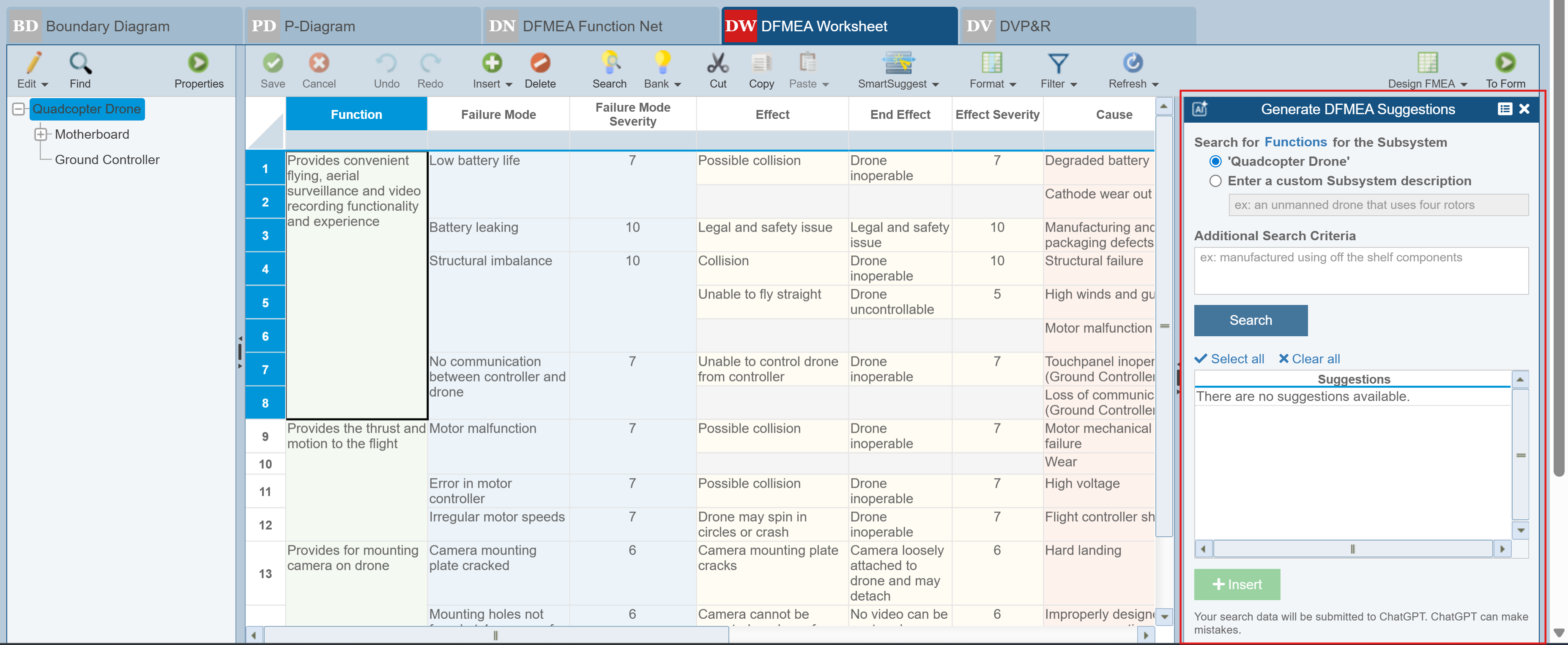
In the toolbar of the Generate Suggestions pane when using ChatGPT, you can click  to Show Token Usage or click X to close the pane.
To use the Generate Suggestions function, indicate what you want to search for as well as any Additional Search Criteria.
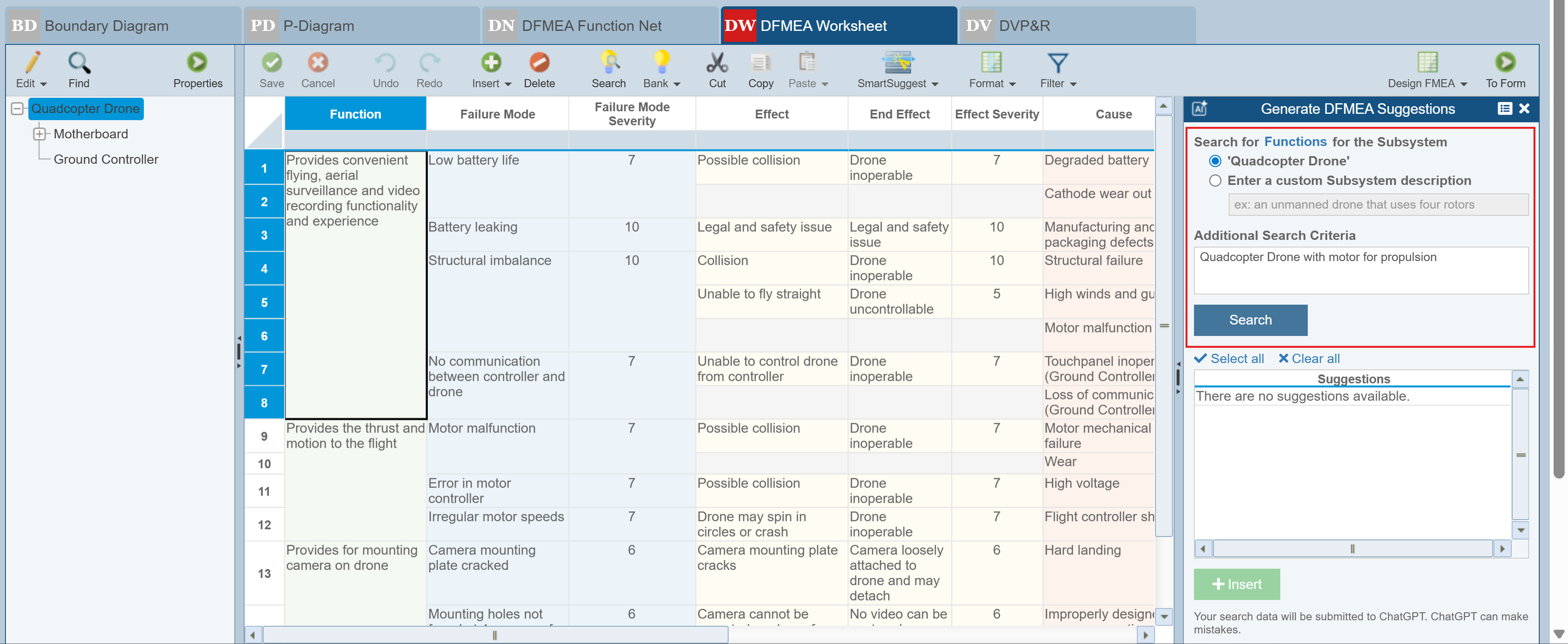
Then click Search.
Note: Generating suggestions uses AI-based processing and may consume usage tokens. Token usage can vary based on the amount of data analyzed and the number of suggestions generated. See AI Features and Token Usage for details.
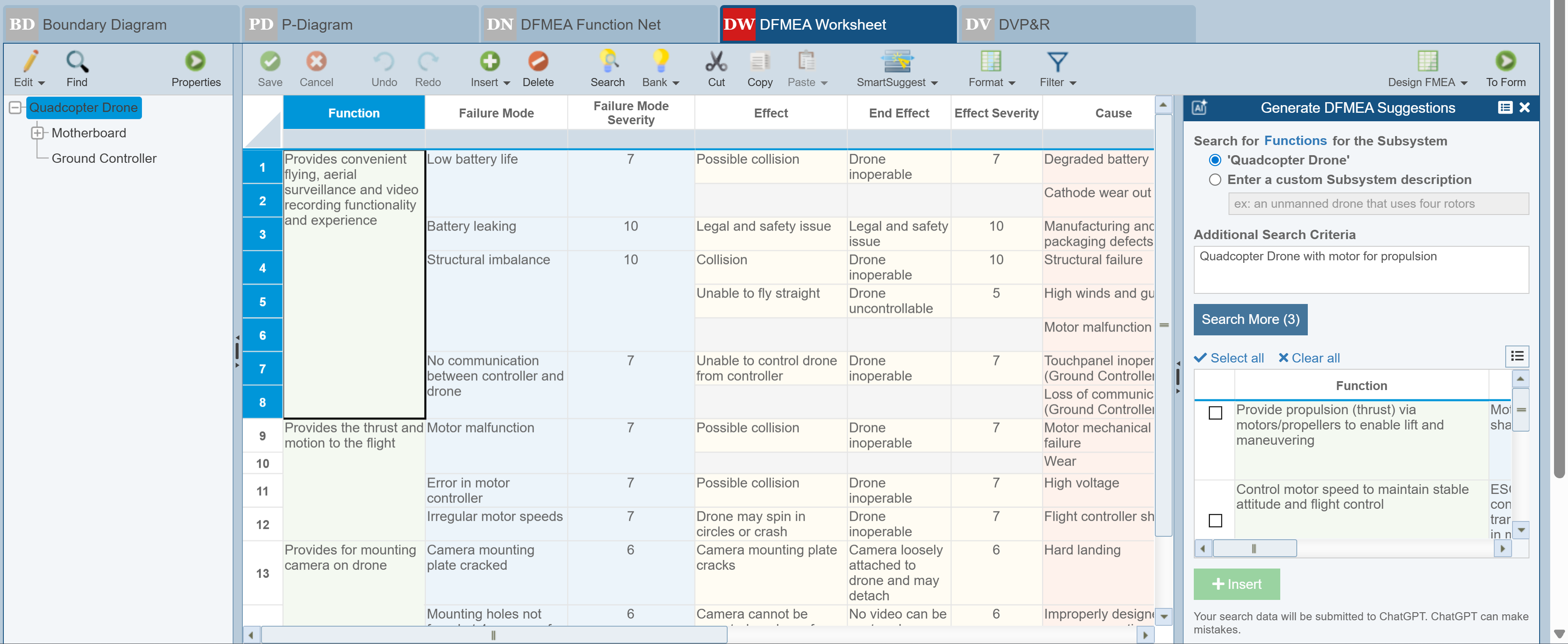
Use the splitter bar, if needed, to resize the pane to review the data.
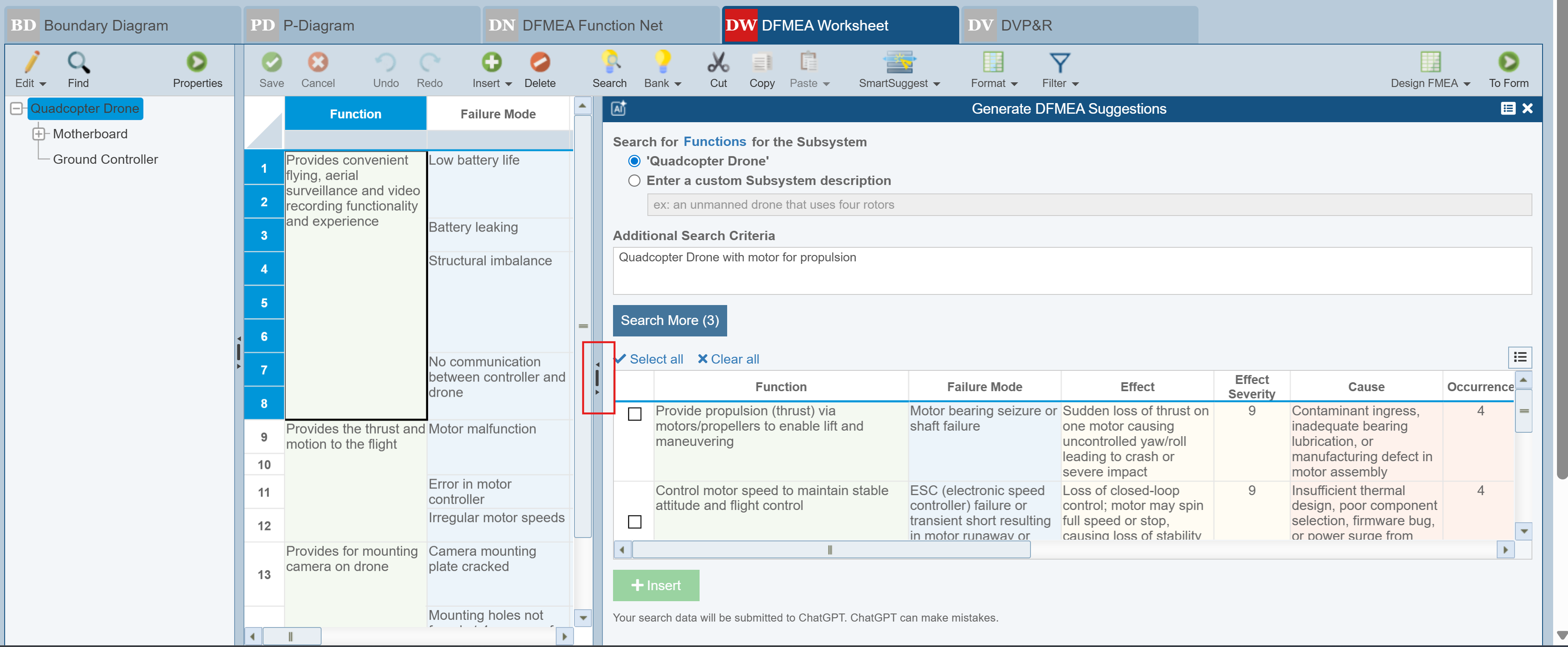
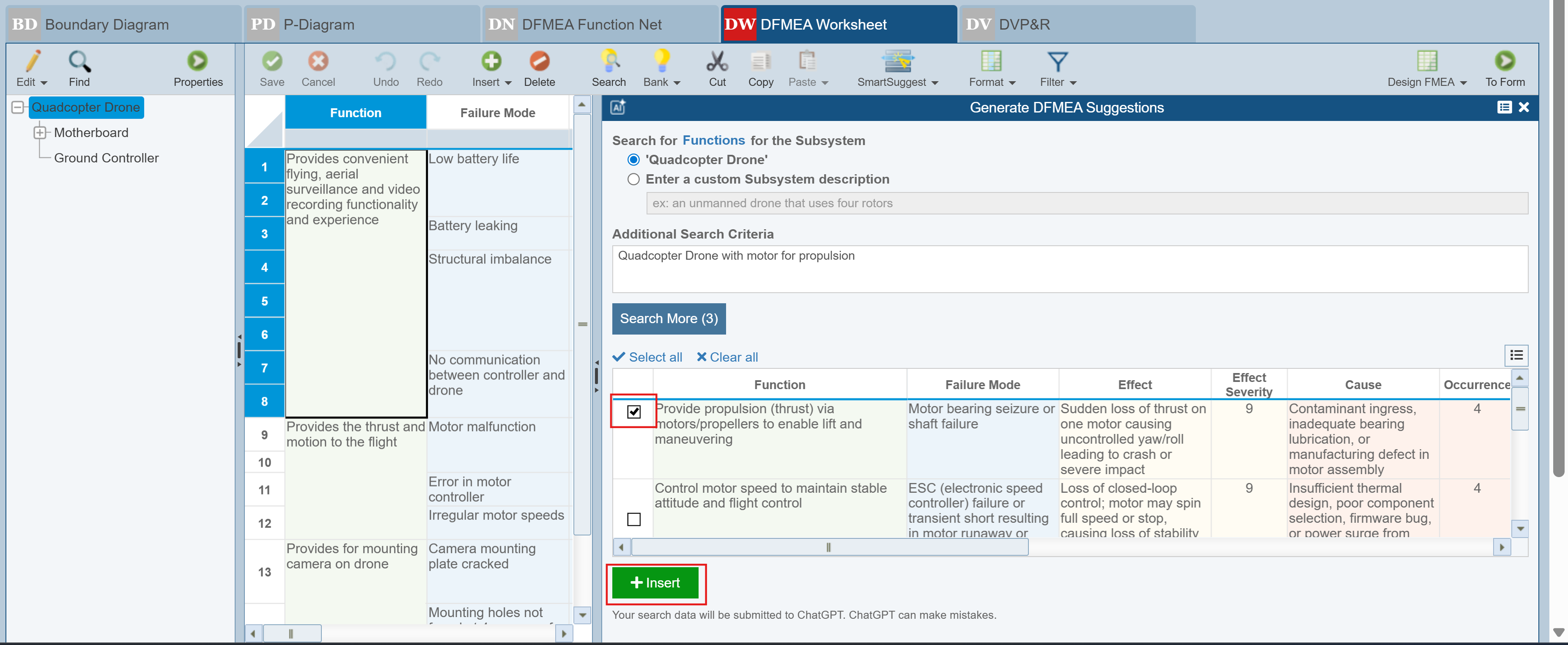
Review the Suggestions and select any that you want to add to the FMEA worksheet.
Note the options above the table of results:
- Select all - use to select all the records in the table
- Clear all - use to clear all selected records in the table
- Show Search Statistics - button to show the details from the search on the Search Results Statistics dialog
To add any, mark the checkbox and then click Insert.
The new data is added to the FMEA worksheet.
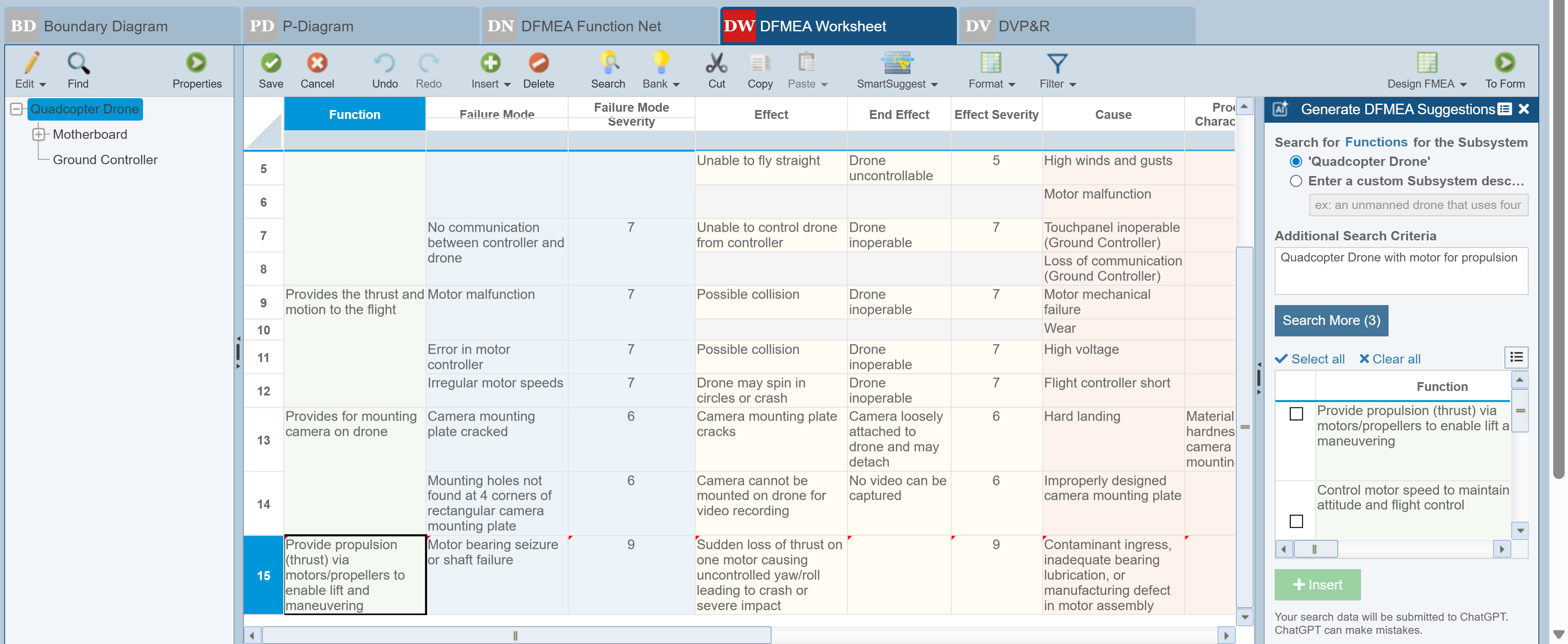
Repeat the process for additional searches, as needed, and when you've completed searching, click X in the Generate Suggestions pane to close it.